What's Included in Help Scout's Free Plan?


If you've reached a point where your current system for supporting your customers — commonly an individual email account or a shared Gmail or Outlook mailbox — is no longer working, Help Scout's free plan is designed for you.
Help Scout's free plan costs nothing and can be used indefinitely. You can add up to five people at your company as users, reply to emails from up to 100 contacts per month, view reports that keep you up to date on your team's performance in real time, and even build a small help center that your customers can access to get answers to their questions on their own.
Below, we'll walk through everything that's included in Help Scout's free plan, explain what its limits are, and share what types of teams and use cases it's best for.
Help Scout's free plan at a glance
| Category | What's included? |
|---|---|
Users | Up to 5 |
Contacts helped | 100/month |
Shared inboxes | 1 |
Help center sites | 1 |
Help center articles | 10 |
Beacon web widget | 1 |
Reports | Pre-built reports with 30 days of history |
Integrations | 1 |
Support | Standard email support, live classes, and self-service support |
Everything that's included in Help Scout's free plan
Here's a more in-depth look at everything that's included in Help Scout's free plan.
Five users
A user is a person at your company who has a login for Help Scout and can use the system to create knowledge base articles or reply to emails from customers. You can add up to five users on the free plan.
100 contacts per month
A contact is someone your team replies to. You can reply to up to 100 contacts per month on the free plan. If you reach your limit for the number of contacts you can reply to in a month, you won't be able to reply to customers again until either your next cycle starts or you upgrade.
Interacting with the same person multiple times in a month only counts as one contact, and auto-reply emails sent by the system do not count toward your contact limit.
One shared inbox

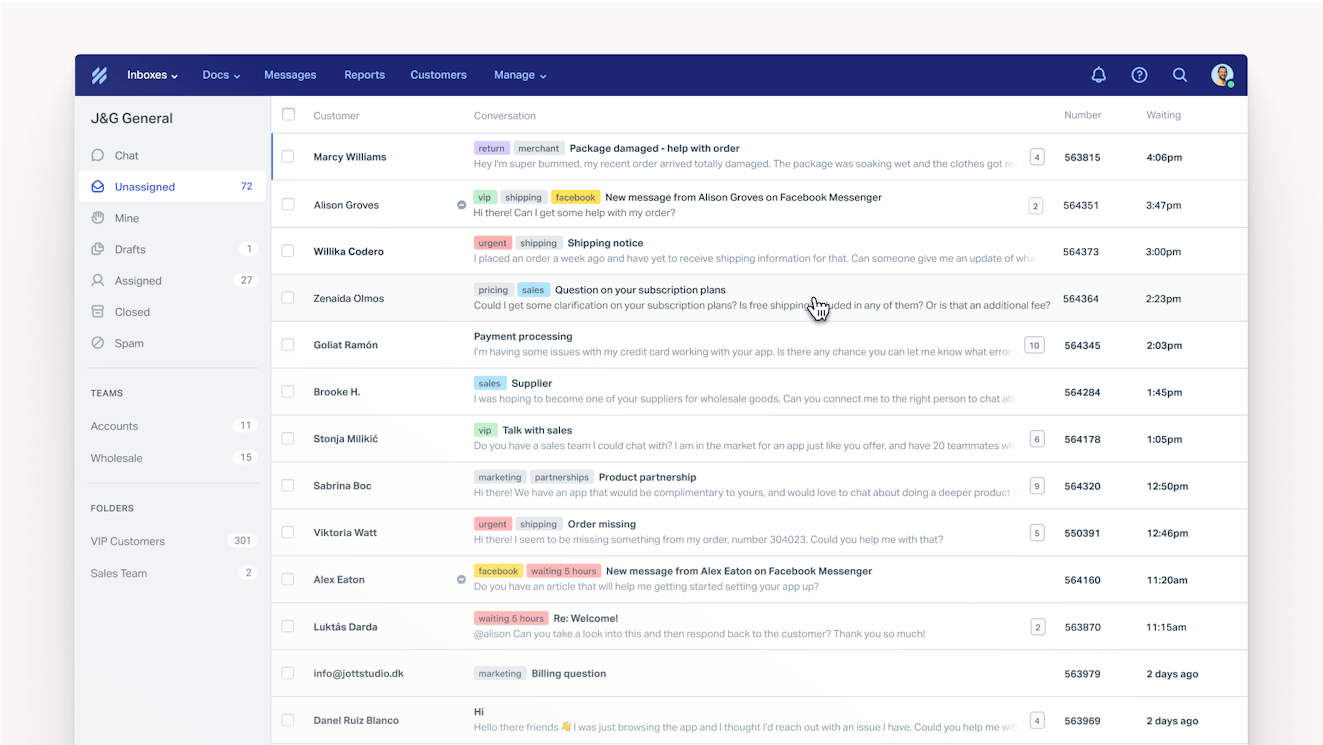
Your Help Scout Inbox is where all emails sent to your support email address will appear. When you create your inbox, you set up forwarding to redirect emails sent to your existing support email address into Help Scout. Once that's finished, all of the communications sent to that email address show up in a queue in your Help Scout Inbox, and you can reply to them just like you would in any other email tool.
Customers can send emails directly to your support email address, or you can create a contact form they can use to reach out to you from your website.
When replying to customers, you can use Help Scout's formatting menu to make text bold, italicized, or underlined; add text that's formatted as code; add hyperlinks and bulleted or numbered lists; and more. You can also use keyboard shortcuts to format as you type, as well as to navigate the platform quickly using only your keyboard.
Conversations that have multiple replies show up as threads in the system, and you can create a team email signature that appears on every email reply you send. Finally, you can set up auto-reply emails — templated emails that are automatically sent to everyone who emails you to let them know their email was received and when they should expect to hear back from you.
Beyond these basics, you also get access to lots of features that help your team collaborate more efficiently and stay organized:
Assignments: Manually assign incoming emails to specific team members to let them know they're responsible for replying. Users can view all conversations that have been assigned to them in the "Mine" folder.
Private notes and @mentions: Get help from a teammate on an email reply by adding a private note (that customers can't see) to an email and tagging the person on your team who you need help from using an @mention.
Availability: Team members can set their availability to "available" or "away," which is helpful for letting other teammates know when they're able (or unable) to take on assignments or reply to internal notes.
Notifications: Customize the types of notifications you get (e.g., when you're assigned an email or @mentioned in a private note) and how you receive those notifications (e.g., in your Help Scout notifications list on the web or in the mobile app, via email, or as a browser notification).
Follow a conversation: Anyone on your team can choose to follow a conversation so any new replies — from someone on your team or a customer — show up in whatever way you've chosen to receive notifications. This is helpful if you don't know the answer to a question but want to see how someone else answers it, or if you need to make sure a customer's question was handled properly.
Contact profiles: View information about who is emailing you (e.g., customer name and company) in a sidebar so you can personalize your responses and troubleshoot more quickly.
Collision detection: Avoid duplicate work and customers getting multiple, possibly conflicting replies. With collision detection, a prominent icon appears when someone else on your team is currently viewing or replying to an email, and you get an "are you sure" warning before your reply is sent if you're replying to a conversation someone else has already responded to.
Saved replies: Create up to 10 canned responses for the questions your team gets most often. Then, you can insert them into replies in two clicks to respond to FAQs in seconds.
Tags: Add labels to conversations (e.g., "VIP customer" or "Urgent") to quickly identify requests you need to prioritize or keep track of specific types of requests that are important to you. You can create up to 10 tags on the free plan.
Snooze: Use snooze to hide emails from your inbox temporarily.
Send later: Use send later to schedule emails to be sent at a future date and/or time.
Search and search operators: Find any email you've ever received and any reply your team has ever sent (helpful if you're not sure how to answer a question that's been answered before). Search your entire history of emails using basic keywords or search operators that let you get really granular and specific with your searches.
One help center with up to 10 articles


On Help Scout's free plan, you can:
Create a help center (called a Docs site) that your customers can use to find answers on their own.
Publish up to 10 public knowledge base articles in your Docs site.
Host your Docs site on your own custom domain (e.g., help.yourcompanyname.com).
Optimize your Docs site for search and LLMs by deciding if you want it to be indexable or not, writing custom title tags and meta descriptions, customizing article URLs, adding redirects when needed, and creating a sitemap.
When creating knowledge base articles for your Docs site, you can use the Docs editor's inline toolbar to apply standard and advanced formatting. In the toolbar, you'll find basic formatting options like bold, italic, underline, hyperlink, headings, alignment, numbered and bulleted lists, inline code, strikethrough, and more.
There are also lots of advanced formatting options. You can display a section of text as a blockquote, create a callout that stands out with a different color background, insert a line to divide sections of content, add emojis, embed images and videos, add custom HTML, create tables, and add a table of contents with anchor links to specific sections of your article.
Another helpful feature is that you can view revision histories showing all changes to your Docs articles and restore an article to a previous version if needed.
And finally, to help customers find what they're looking for easily, you can sort your Docs articles into collections and categories and add keywords to them to help them show up when customers search for relevant terms.
One embeddable Beacon web widget

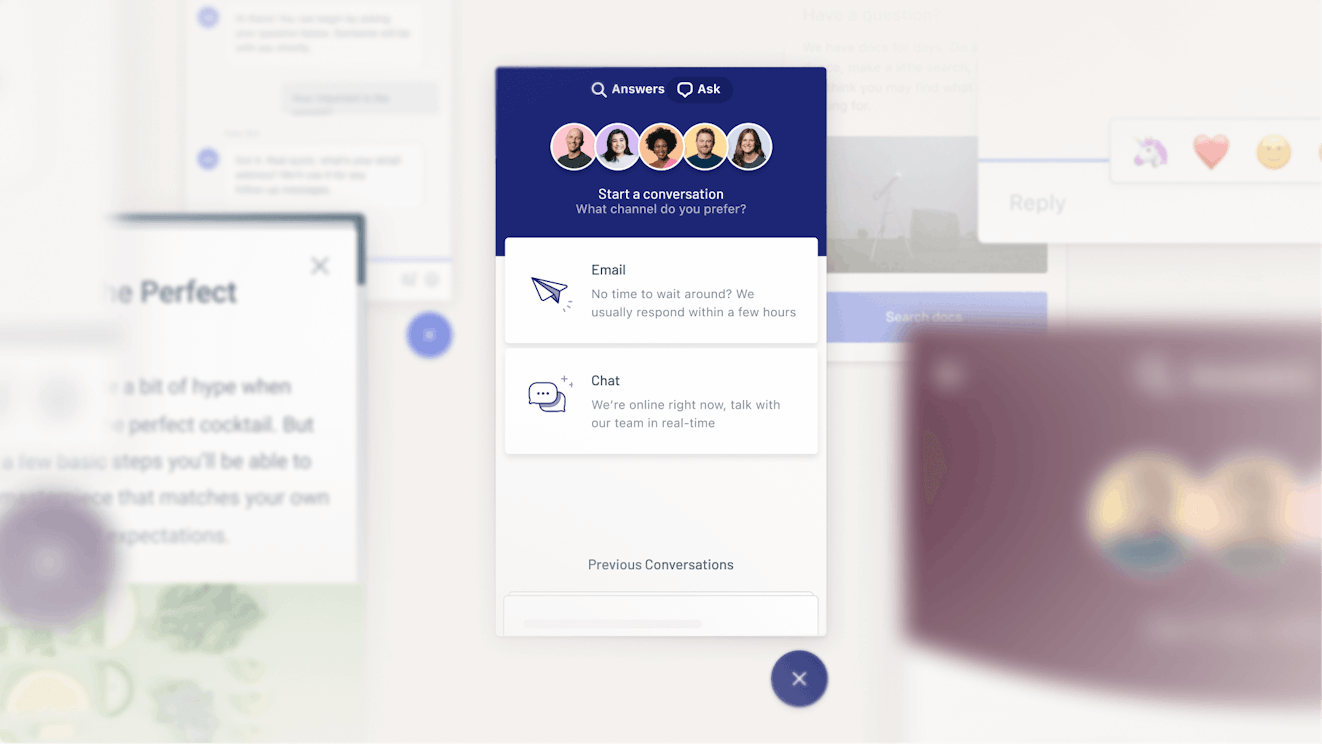
A Beacon is a web widget that can be embedded on your website or in your app. On paid plans, Beacon is the home for live chat and Help Scout's AI agent, but on the free plan, your Beacon can be used for two things:
To display a contact form that customers can use to email you from any page of your website or app.
To let customers search for and read your Docs articles from any page of your website or app.
This makes getting support much more accessible for customers. They can look for the answer they need without having to stop what they're doing and navigate to your help center, and if they can't find the answer on their own, they can reach out to your team using the same interface.
For your contact form, you can choose which fields appear on the form and which are required. Ask for a name, have them add a subject, or allow them to upload and send attachments. A message is always required, but the other fields can be optional or hidden. Additionally, you can add up to five team member photos that display on your contact form if you want to highlight who will reply to the email.
You can also customize the look and feel of your Beacon: change its color, edit the copy for all labels, choose the default language that all labels display in, choose the icon customers click to open it, and specify where the Beacon should appear on your page. You can also customize which options are shown to customers: both a contact form and your help center articles, just your contact form, or just your help center articles.
One integration


Help Scout's free plan lets you use one of its more than 100 pre-built integrations with tools like Shopify, Stripe, Slack, Mailchimp, Census, and Zapier. However, some premium integrations are not included in the free plan: Salesforce, HubSpot, Jira, Linear, GitHub, and Aircall.
Reports
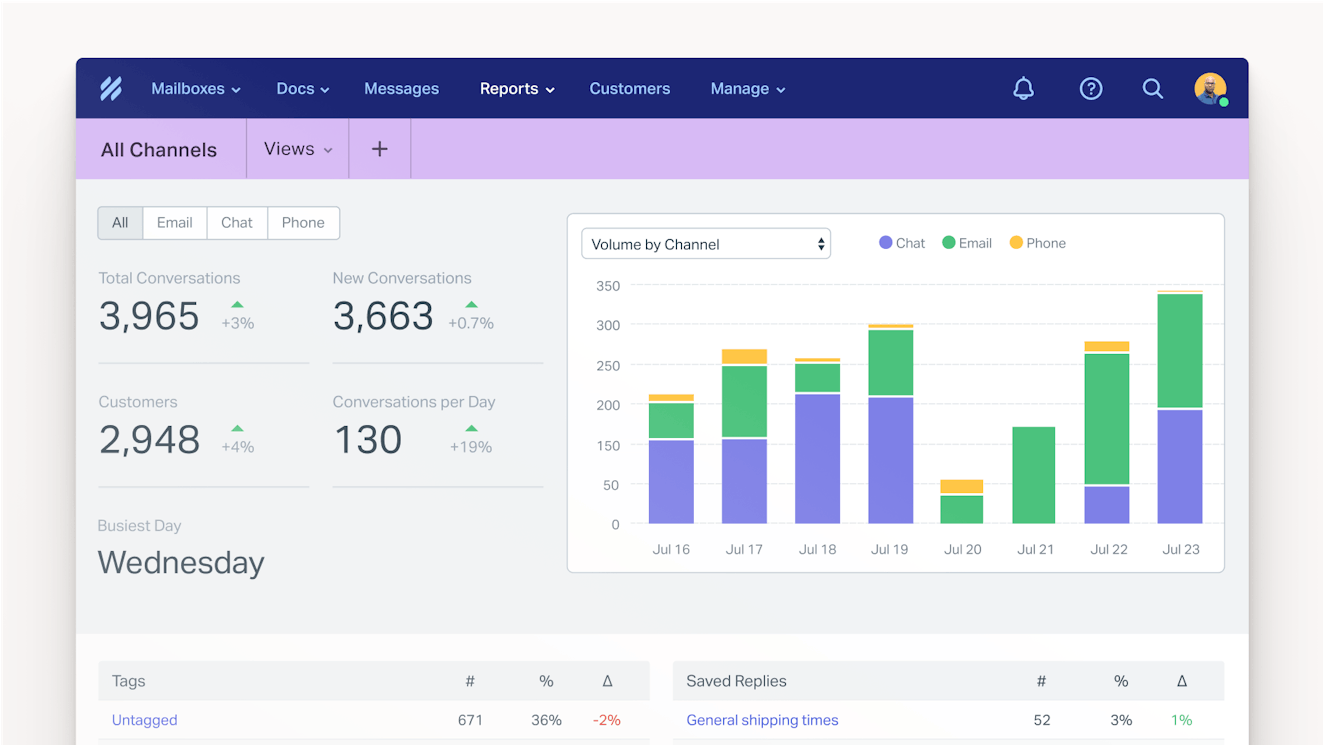
On Help Scout's free plan, you get access to pre-built reports with a 30-day history. You will not be able to look back further than 30 days when choosing the timeframe to view in your reports, and you cannot export reports outside of Help Scout on the free plan.
You get access to reports for both Inbox (email) and Docs (help center).
Here are the metrics that are included in the email report:
Email conversations: The total number of email conversations initiated.
Messages received: The total number of emails received.
Replies sent: The total number of replies sent by your team.
Emails created: The total number of emails created by your team (i.e., someone on your team reached out to a customer directly rather than replying to an email the customer sent).
Resolved: The total number of conversations that were resolved.
Resolved on first reply: The total number of conversations that were resolved with the first reply to the customer.
First response time: The average amount of time it takes for customers to receive a reply to their first email.
Response time: The average amount of time it takes for customers to receive a reply to any email.
Resolution time: The average amount of time it takes for requests to be resolved.
Replies to resolve: The percentage of requests that took one reply to resolve, two replies, three, and so on.
Handle time: The average amount of time it takes a user to write a reply to an email.
Additionally, you can compare any of these metrics across two specific timeframes (e.g., this week vs. last week) to see where you're improving and where you need more work.
Here are the metrics included in the Docs report:
Visits: See how many people viewed your Docs site or your Beacon in a specific timeframe.
Failed searches: See the things customers searched for that didn't produce any of your articles as results. This helps you understand what keywords need to be added to your articles (if searches aren't providing results for topics you've already covered) or identify gaps in your knowledge base that need to be covered.
Article views: See how many times people viewed your individual Docs articles in a specific timeframe, and see which articles are the most popular.
Satisfaction ratings: If you've enabled Docs article ratings, which allow customers to leave feedback on whether an article was helpful or not, you can see overall satisfaction ratings for each of your articles based on customer responses.
Finally, in addition to these channel-specific reports, you also get access to user reports that let you monitor metrics by specific team members. The user report shows the average number of replies the user sent per day in the selected timeframe and the average number of requests they closed.
Mobile apps


All of the users on your account can download Help Scout's mobile apps for Android and iOS to view open, pending, and closed conversations; assign requests to others; and view their notifications.
Free plan limitations
Help Scout's free plan does come with a few limitations:
You can't add more than five users.
You can't create more than one inbox.
You can't reply to more than 100 contacts in a month.
You can’t remove the “Sent with Help Scout” email footer.
You can't create more than one Docs site.
You can't create more than 10 knowledge base articles.
You can't create more than one Beacon web widget.
You can't create more than 10 saved replies.
You can't create more than 10 tags.
You can only see 30 days of data in your reports.
You can't access premium integrations with Salesforce, HubSpot, Jira, Linear, GitHub, or Aircall.
If you need to go above any of these limitations — or to get access to additional channels and features like live chat, social, SMS, or AI support — you'll need to upgrade to a paid plan.
Who the free plan is a good fit for
Help Scout's free plan works best for teams whose support volume or headcount is growing and who need more structure but don't yet need advanced features or multiple channels. For example:
A SaaS founder, ecommerce company owner, or support professional who's currently handling support by themselves but wants to set up a proper support platform before hiring help.
A small professional services team that's using a shared Gmail or Outlook mailbox to manage client emails and needs more reporting tools and features to clarify who's responsible for what.
An early-stage startup that wants to create a knowledge base to reduce the number of incoming requests and see what customers ask before committing to a subscription.
Moving customer conversations into a shared inbox doesn't require a big budget or a complicated setup. Help Scout's free plan lets you start simple and grow when you're ready. If you'd like to try it out for yourself, you can sign up for a free Help Scout account.
Like what you see? Share with a friend.
Jessica Greene
Jessica Greene is a Help Scout alum, where we make excellent customer service achievable for companies of all sizes. Connect with her on LinkedIn or through her website.
Ready to go?

