The 7 Best Shared Inbox Software: 2026 Buyer's Guide



If you have more than one person in charge of replying to emails sent to a single email address (e.g., support@, hr@, finance@, etc.), a shared inbox platform will save you time, make collaborating simpler, and give you the features you need to stay organized as your team grows and email volume increases.
We've put together this list of the seven best shared inbox software to help you find the right fit. Compare your options side by side in the table below, or keep scrolling for more detailed reviews of each platform.
| Platform | Summary | G2 Rating | Free Trial | Starting Price |
|---|---|---|---|---|
Help Scout | Help Scout is ideal for customer support teams looking for an affordable shared inbox with powerful AI, collaboration, and organization features. | 15 days | Free plan available; paid plans start at $25/user per month | |
Gmelius | Gmelius is a Gmail extension that turns your Gmail inbox into a collaborative inbox with features like reporting, collision detection, and shared drafts. | 7 days | $25/user per month | |
Emailgistics | Emailgistics is an Outlook extension that adds features like SLAs, automatic round-robin routing, and reporting to your existing Outlook shared mailbox. | Not available | $11/user per month | |
Drag | Drag turns your Gmail inbox into a combined shared inbox and CRM, making it a great option for sales teams. | 7 days | $12/user per month | |
Front | Front is ideal for professional services firms because it can be used to collaborate on personal and shared email with internal and external parties. | 14 days | $25/seat per month | |
eDesk | eDesk is perfect for ecommerce teams with its marketplace and ecommerce platform integrations and features like automated review request sequences. | 14 days | $39/agent per month | |
Hiver | Hiver's free plan includes unlimited users, unlimited replies, and one shared inbox, making it a great fit for small businesses with small budgets. | 7 days | Free plan available; paid plans start at $25/user per month |
What is shared inbox software?
Shared inbox software is a tool that allows multiple individuals to access, manage, and respond to messages sent to a single email address. It's commonly used by teams like customer support, sales, HR, IT, and finance that receive a wide variety of emails that anyone on the team can respond to.
The benefits of using shared inbox software
Using shared inbox software for team email management has a variety of benefits. They:
Create accountability: Emails in a shared inbox can be assigned to specific team members so everyone knows which messages they're responsible for.
Promote collaboration: Shared inbox platforms allow you to tag your coworkers and leave private notes for them when you need their help to respond to an inquiry.
Improve organization: Shared inboxes have features like tags and custom fields that keep communications organized and assist with routing.
Increase productivity: Most tools have workflows that automate repetitive tasks, canned responses for replying to FAQs, and AI features that draft replies or respond to customers for you.
Prevent duplication: Shared inbox software typically comes with collision detection, which alerts you when someone else is actively replying or has already responded to an email.
Personalize interactions: Many tools include customer profiles that let you see things like who you're replying to, which customer they work for, and what other emails they've sent to your team.
Improve security: Each user on your team has their own individual login for a shared inbox, keeping access to your inbox safe and secure.
Quantify your efforts: Shared inboxes come with reporting and analytics capabilities that give you data on changes in email volume and help you monitor your team’s performance.
Key features to look for in shared inbox software
There are some key features to look for in shared inbox software to get all of the benefits listed above:
Automation: While you might not need advanced automation like AI-generated drafts and replies, you should at least look for basic automated workflows that let you send auto-replies, route emails to the right individuals/departments, and organize incoming requests.
Saved replies: One of the best ways to reduce the amount of time it takes to reply to emails is to create templated responses that your team can insert into emails to reply to FAQs in seconds.
Analytics and reports: Reports help you identify trends and monitor your team's performance to understand where you’re doing well and where you have room for improvement.
Collaboration tools: Look for features like mentions, private notes, and collision detection so you can collaborate when needed and avoid stepping on each others' toes when working individually.
Assignments: At a minimum, you'll want to be able to manually assign emails to team members, but you may also want to look for features like views that let you see only the requests you care about or routing for assigning incoming emails to team members automatically.
Organization features: If you have multiple people working on different types of incoming emails, look for tools with folders, teams, and custom form fields that automatically group emails into specific categories.
Integrations: You'll likely want to be able to connect your shared inbox to other tools that contain important customer information, such as your CRM or billing system.
Other features you might need based on how your team operates include SLAs (for service providers), mobile apps (for teams that reply to emails when away from their desks), and HIPAA compliance (for healthcare organizations that handle PII).
Recommended Reading


The 7 best shared inbox software
Below, you'll find our reviews of the seven best shared inbox software. We've noted what types of teams each platform is best for, called out some of each tool's unique features, and linked to each platform's pricing page so you can find a solution that fits both your needs and your budget.
1. Help Scout – Best for customer support teams
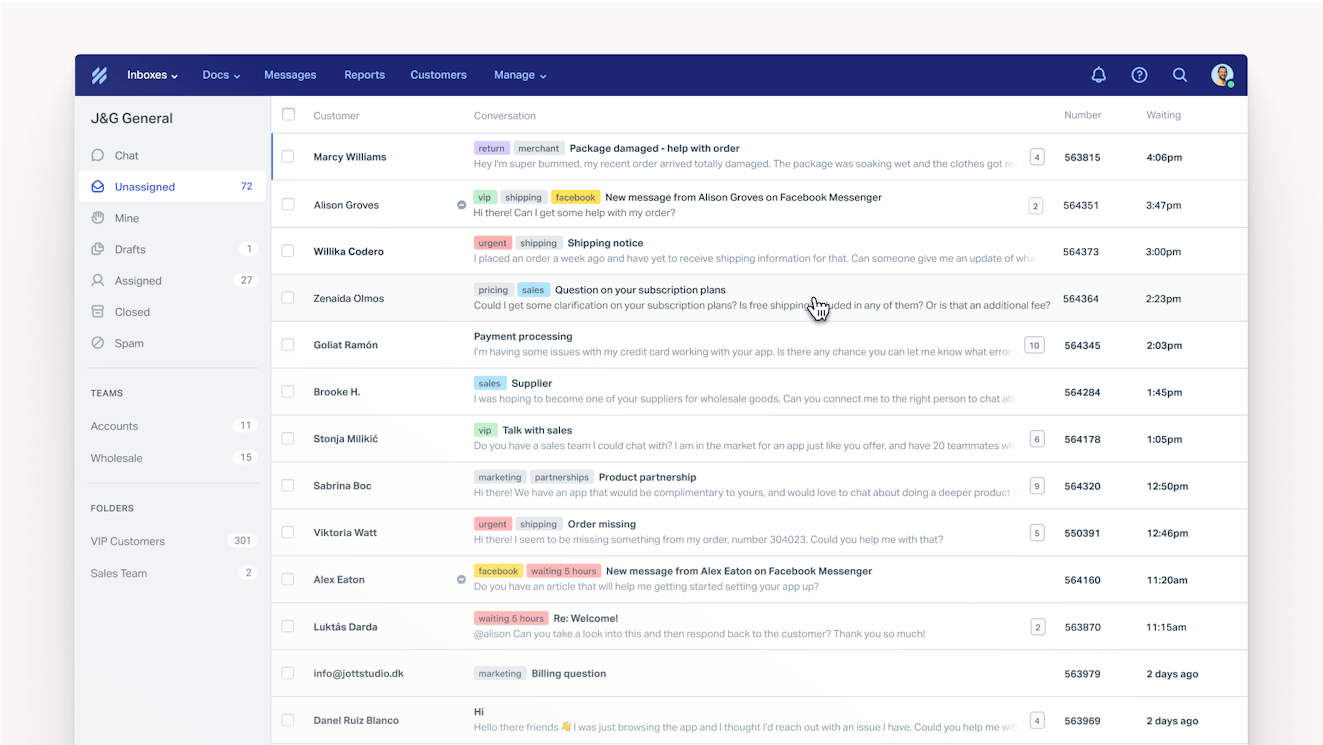
Help Scout is a powerful help desk that's designed for customer support teams. Its shared inbox can be used by teams that only deliver email support, but it also centralizes requests from live chat and social media if you want to branch out and offer support on other channels as well. It comes with many features that makes it easier for teams to stay productive, collaborate seamlessly, and deliver exceptional support.
Stay organized as you scale

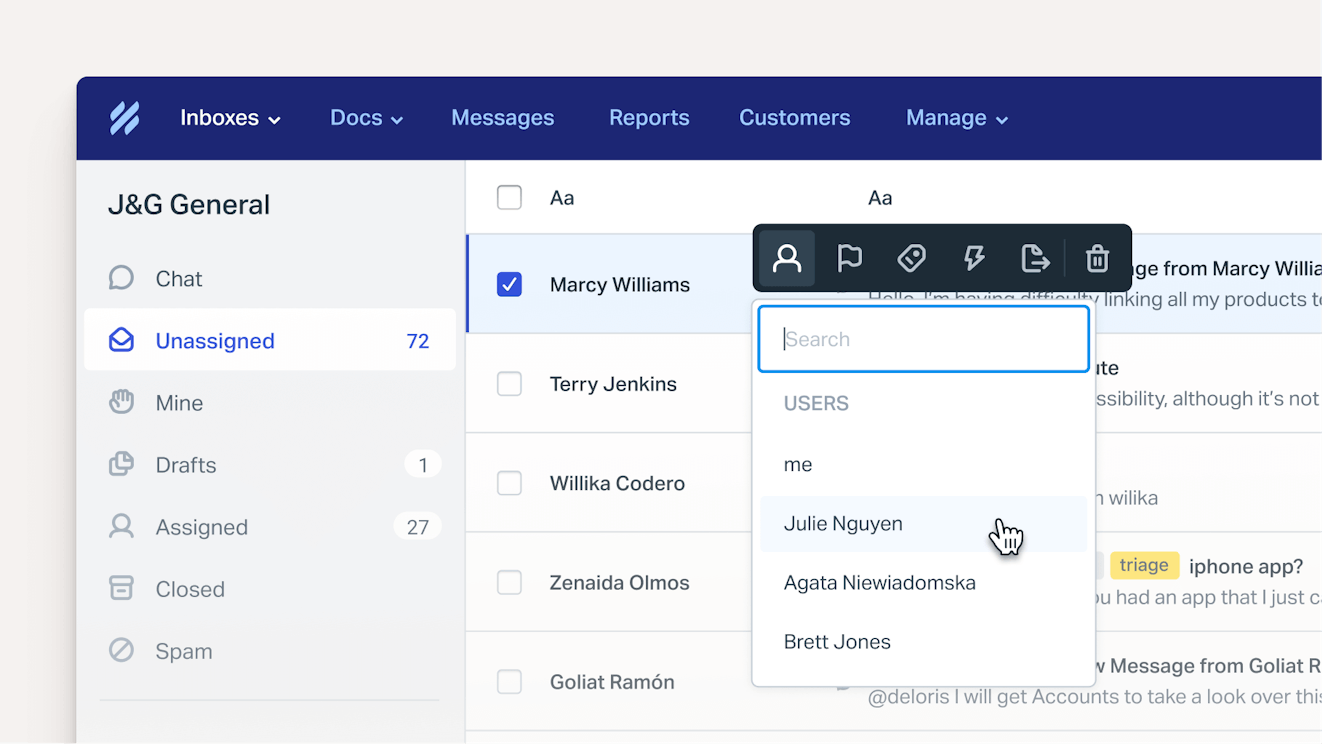
Help Scout's inboxes, tags, views, and assignments help your team keep things organized:
Inboxes sort email messages across brands, products, and email accounts, which is especially helpful if your team manages multiple email addresses.
Tags let you categorize emails by topic or type. They serve as quick visual indicators and enable topic-specific reporting.
Views let you segment conversations based on criteria like channel, assignee, date created, or tags so you can create filtered queues that only contain the messages you need to address.
Assignments let you assign conversations to specific individuals or teams. You can also search by an assignee to see what a specific team member or team is working on.
Collaborate as a team
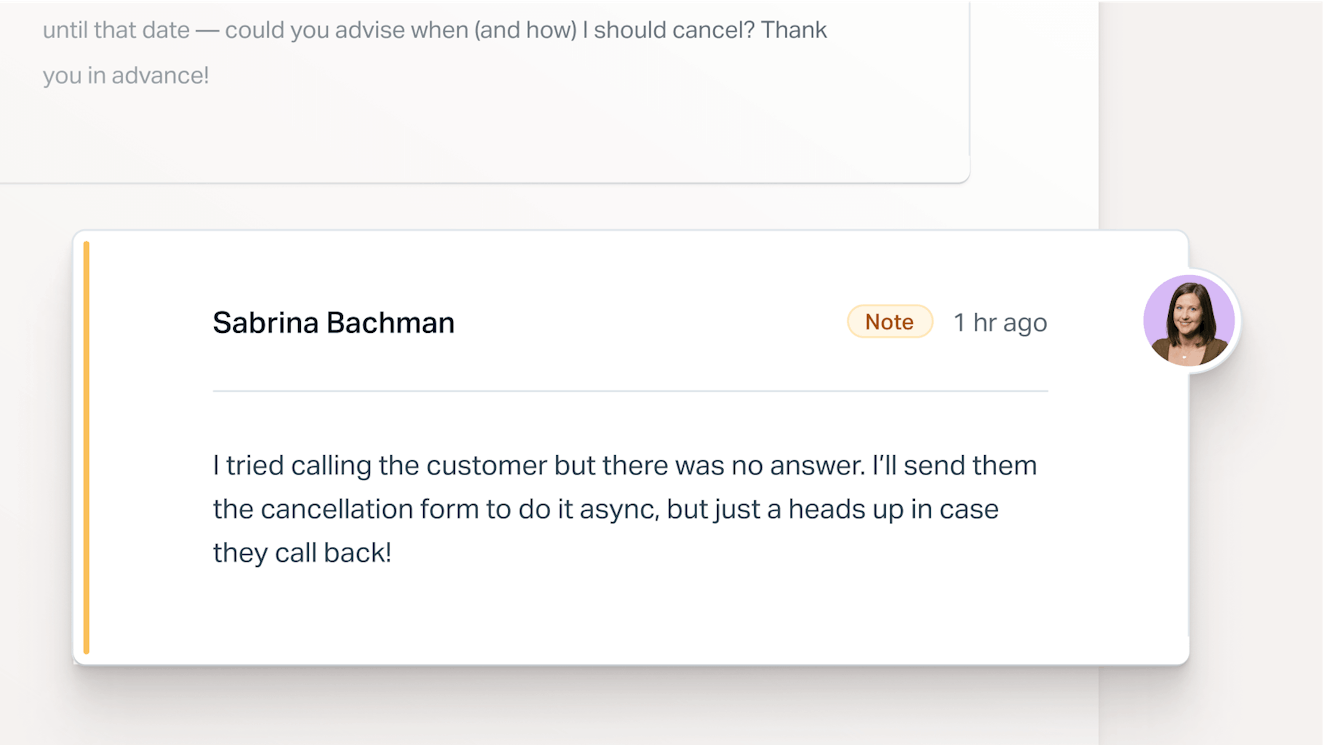
Help Scout also comes with features that make it easy to collaborate on requests behind the scenes before replying to customers. Create a private note to give context to another team member who picks up a request, or @mention a teammate in a private note to send them a notification that you need their help with a request.
Deliver personalized support

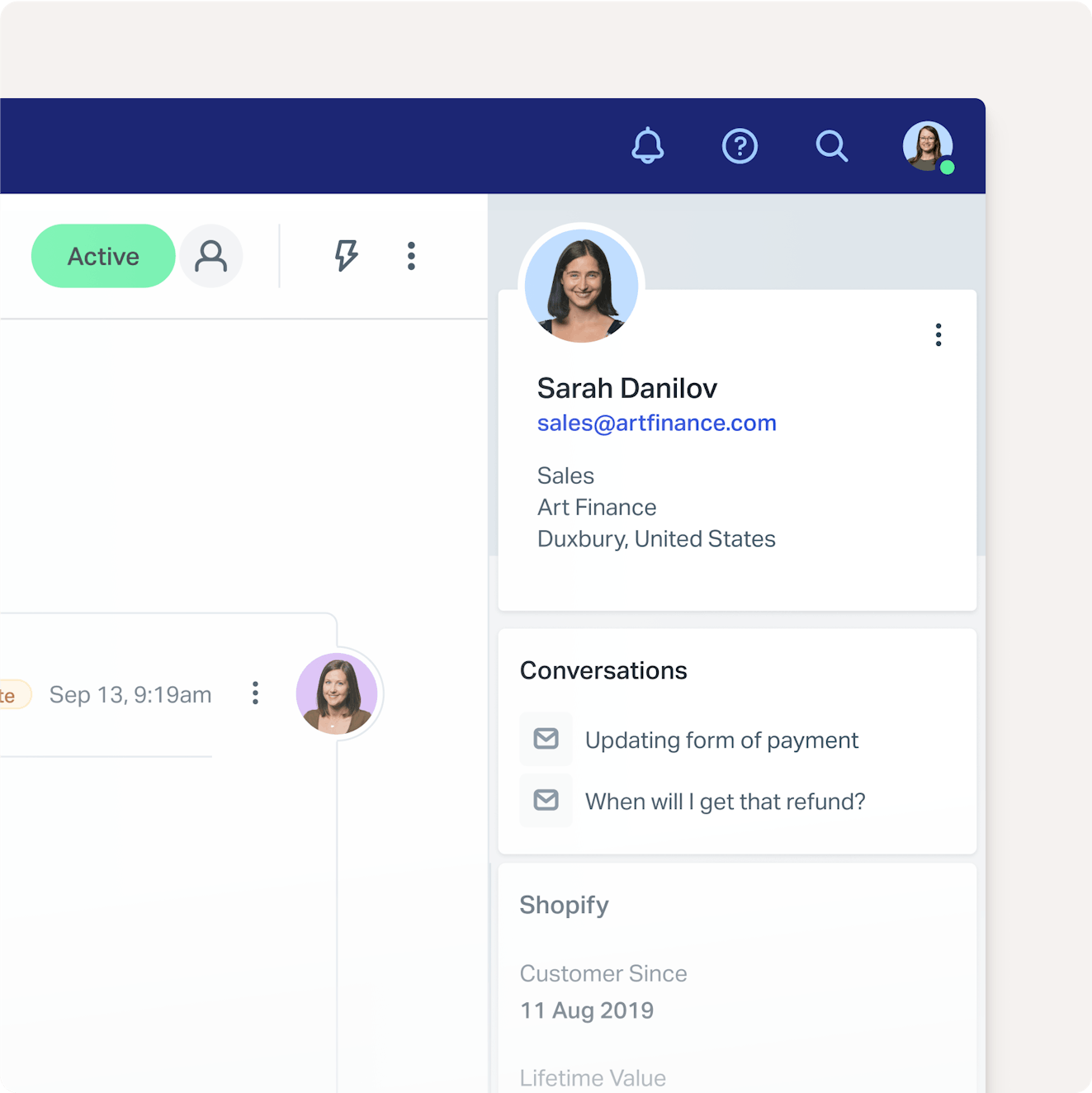
When your team picks up a conversation, they have immediate access to the sender’s full profile: what they’ve asked you, their account history, and quick links to other internal systems. You can also expand the information in the customer profile by integrating Help Scout with other tools your team uses, such as Salesforce, HubSpot, Shopify, Jira, Slack, Aircall, and many more.
With the full context readily available to them, your team can give a much more personalized and useful reply without slowing their response times. Plus, no one has to suffer through a back-and-forth email chain of you asking for account information.
Stop stepping on each others’ toes
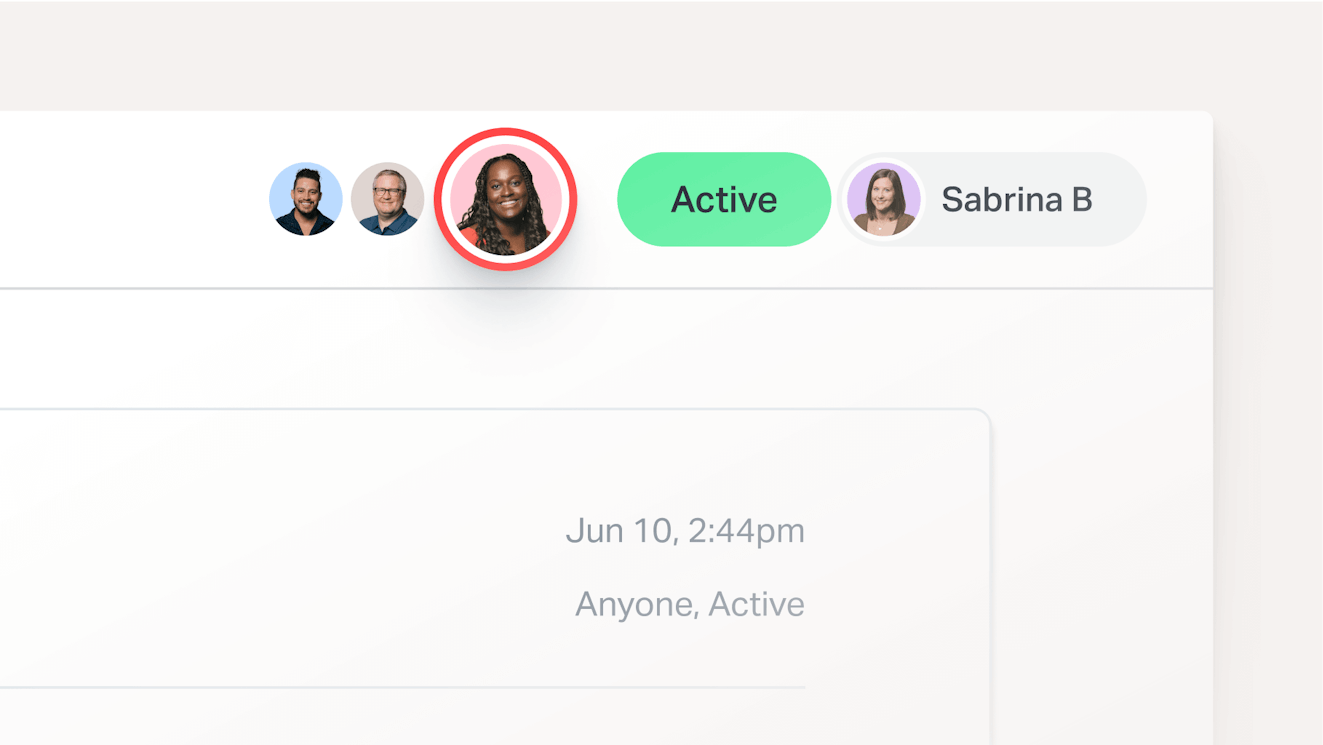
Collision detection indicators enable everyone to see who is working on which issues in real time. It’s a simple visual notification system:
When looking at the queue, a yellow triangle shows you that another user is viewing a conversation, and a red triangle appears if someone is responding.
When viewing a specific email, a user's avatar is highlighted in red when they are writing a response or leaving a private note.
Another great aspect of collision detection is that it doesn’t allow you to send a message if another person replies while you are working on a response. This prevents customers from receiving duplicate replies or conflicting information.
If you want to completely avoid team members bumping into each other, you can assign all incoming requests to specific individuals using automatic routing. Both round-robin (emails assigned in a circular, repeating order) and load-based (emails assigned based on team members' current workloads) routing options are available.
Save time and effort

Help Scout helps your team stay productive and avoid busy work with workflows, saved replies, and AI:
Use workflows to automate common tasks: Assign billing issues to the finance team, add emails that have surpassed your SLA to an "urgent" folder, or send a follow-up email to a customer who hasn't sent a reply to a question you asked them.
Build a library of saved replies that let you answer FAQs in seconds and save you the trouble of typing the same responses over and over.
Reply to emails faster with AI Drafts, an AI-powered writing assistant that creates draft replies to emails using knowledge from your previous conversations and help center.
Get up to speed on long back-and-forth conversations quickly with AI Summarize, which generates a bulleted summary of any conversation in a click.
Improve replies you've written with AI Assist, which can automatically adjust the length or tone of your responses, correct spelling and grammar mistakes, or translate a reply into another language.
Dig deep into your data
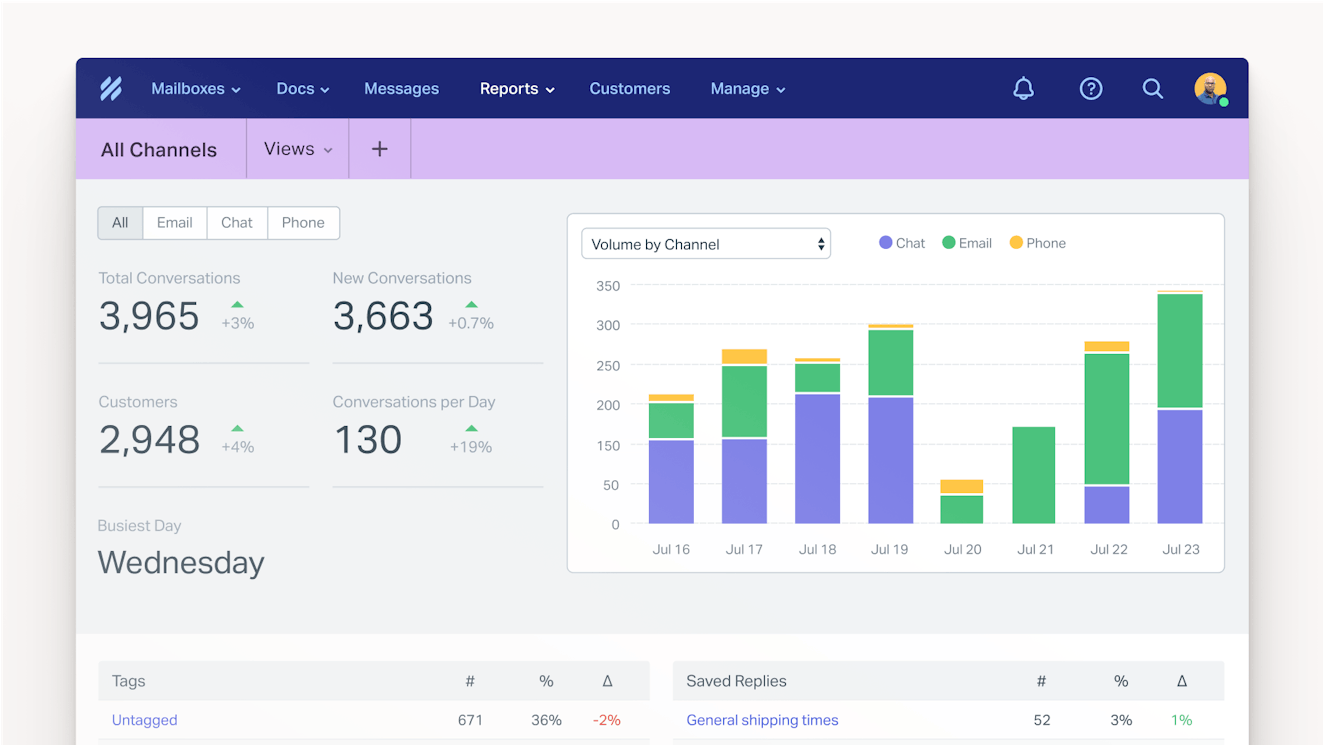
Help Scout’s reporting tools help you turn a stream of conversations into usable insights. Understand your customers better than ever by answering questions like:
When do most people need help, and how responsive are you during those times?
Which support channels do people want to use, and how is that changing over time?
What do people think about a new feature, and what language do they use to describe it?
Which types of questions are you best at answering, and which are associated with lower satisfaction?
Provide more than just email support

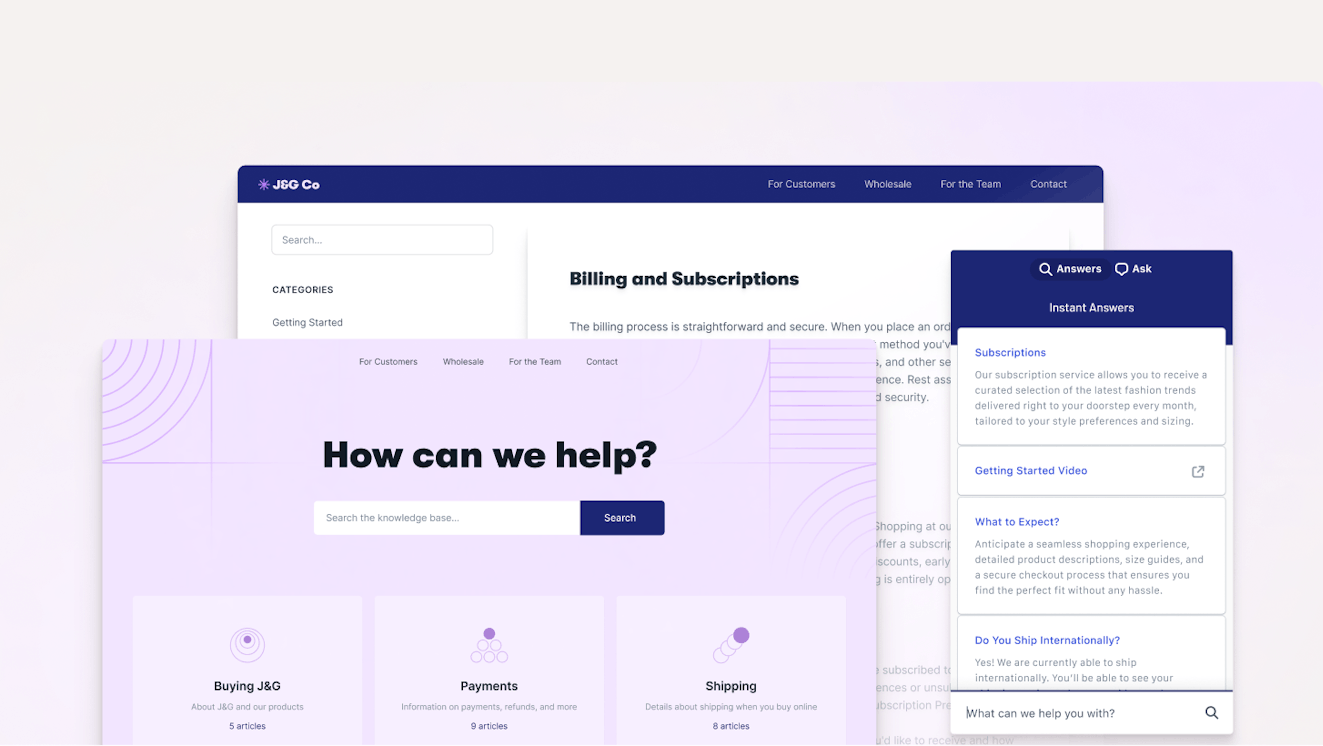
A shared inbox is just one of the tools your team gets access to when you sign up for a Help Scout plan. You can also use Help Scout to create a knowledge base, offer live chat support, provide instant answers via an AI chatbot, and send visitors proactive messages or microsurveys while they're browsing your website or using your app.
Pricing
Free plan and trial available. View Help Scout's current pricing.
Learn more about Help Scout:
2. Gmelius – Best for upgrading your existing Gmail inbox

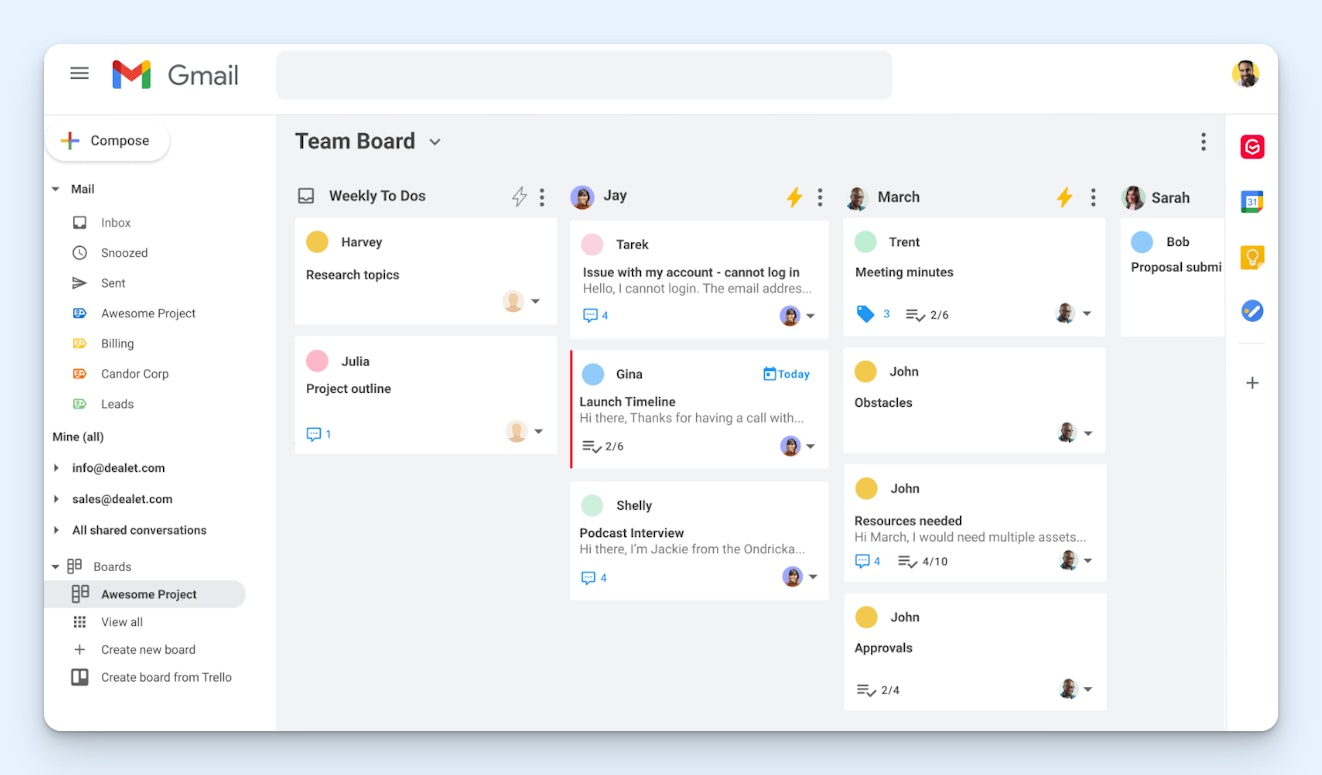
If you've been using Gmail to manage email as a team — either via a shared login or using the Collaborative Inbox feature of Google Groups — and want to stick with what you know while expanding the features you have access to, Gmelius is a good option to consider. It's an extension that expands Gmail's functionality, letting you create shared inboxes you can use to collaborate with your team.
With Gmeilus, you can assign emails to specific people manually or assign emails to individuals automatically via round-robin or load-balanced routing. You can also add private notes to conversations, see when someone else is already replying, send draft emails to teammates for review, add tags to emails, create rule-based automations, and integrate with systems like Slack, HubSpot, and Salesforce.
Gmelius also comes with AI assistants that help improve your team's productivity. It can automatically tag, categorize, and route incoming emails to the right person or team; draft replies to requests using knowledge from your team's past conversations; or even answer questions or perform actions for you, such as giving you a summary of your day or scheduling a meeting with a teammate.
Finally, Gmelius gives you access to detailed reports. For example, its "New Conversations" report shows you how many emails you received and handled within a certain timeframe — along with data showing your busiest days and times — and the "Team" report gives you a rundown on individual performance, showing data like number of replies, number of conversations closed, and average time to close.
Key features
Tag teammates to let them know you need their help answering an email.
Leave private notes that aren't visible to customers on tickets.
Use AI to write draft replies to incoming requests.
Use routing to automatically assign emails to specific individuals.
Access reports showing email volumes and team productivity.
Integrate with other systems like Slack, HubSpot, Salesforce, and more.
Pricing
Free trial available. View Gmelius' current pricing.
Recommended Reading

3. Emailgistics – Best for upgrading your Outlook shared mailbox

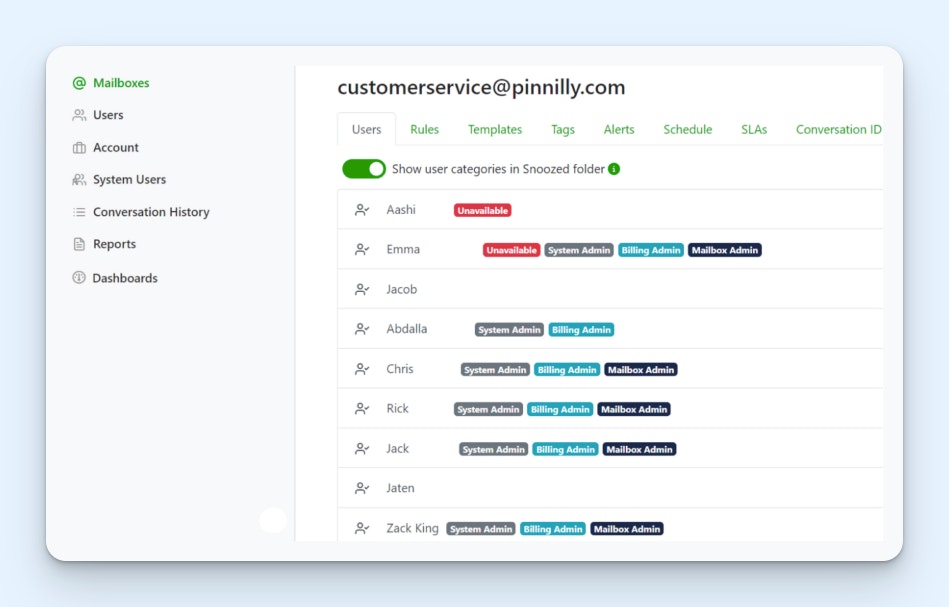
Similar to how Gmelius works on top of Gmail to add shared inbox features to a familiar interface, Emailgistics works on top of Outlook to add helpful features like assignments, reporting, internal notes, conversation histories, response templates, and team scheduling.
When new emails are received, Emailgistics automatically assigns them to available team members using a round-robin approach. Team members can set recurring schedules for when they're available to take email assignments, or they can toggle their availability on and off as needed. You can also set a max number of emails that can be assigned to a person at once.
Each team member gets their own folder where their assignments are sent. You can also create rules to override the basic round-robin assignments. For example, you can set up rules to send specific types of emails to specific team members, and you can reassign emails that get a new reply back to the person on your team who's already worked on that email.
As far as features that help your team stay productive and collaborate more effectively, Emailgistics lets you see historical conversations your team has had with a customer, add internal notes to collaborate with teammates, and build canned snippets and templates to quickly reply to frequently asked questions.
You can also set SLAs in Emailgistics and see how often you're hitting them in reports. Reports also let you monitor things like response times, request volumes, and number of cases closed by individuals.
Key features
Snooze emails to have them disappear from the inbox and return later.
Set up alerts that notify you when an open ticket exceeds your SLA.
Access reports and create custom reporting dashboards.
Leave internal notes for other teammates on emails.
View conversation histories to see everyone who interacted with an email.
Keep patient PII secure with built-in HIPAA compliance.
Pricing
No free trial offered. View Emailgistics' current pricing.
Recommended Reading

4. Drag – Best for sales teams

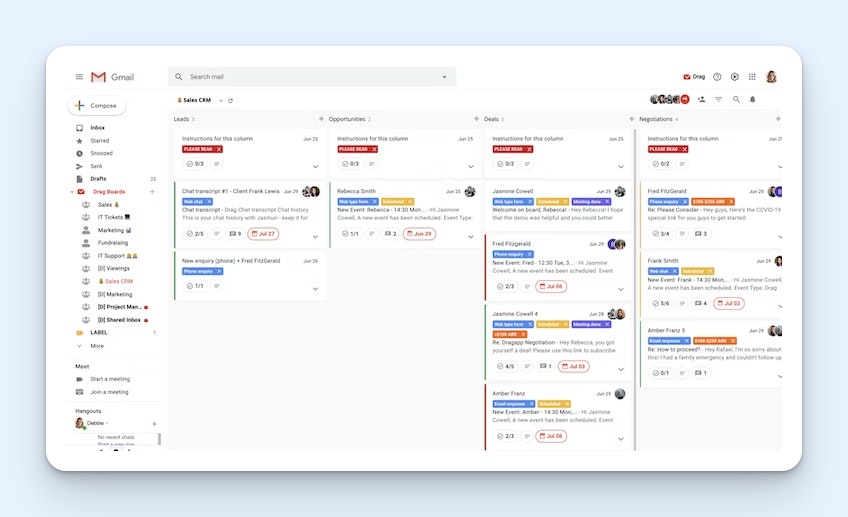
Drag lets your sales team turn their Gmail inboxes into a fully-functional CRM. Like Gmelius, Drag lets you transform Gmail into a collaborative inbox, but it also adds features that sales teams need, such as pipeline visualizations, email tracking, email sequences, and to-do lists. This means your reps can use their Gmail inboxes as a single source of truth for everything they need to do.
You start by creating a shared inbox for your sales@ email address. All lead inquiries and demo request submissions can flow into that inbox where they can either be manually assigned to specific reps or picked up by team members. If you want to avoid your reps cherry-picking the most promising leads, set up round-robin assignments to distribute incoming requests to reps equally.
After that, you can create pipelines for in-progress deals and view your entire pipeline on a Kanban-style board. Reps can create one-off and recurring tasks and assign those to deals, create email templates they can use to send replies quickly and easily, and build automated follow-up email sequences to keep leads engaged on autopilot. You'll even be able to see when recipients have opened your emails.
Drag has also been adding a number of AI features to its platform recently. Live features include AI tagging (automatically label incoming emails) and AI sentiment detection (quickly identify if a lead or customer is upset). AI drafts — which use AI to generate replies to emails — are in private beta as of the time of this post's writing, and an AI compose assistant and AI summarization tool are both coming soon.
Key features
Add private notes to emails to provide context when you're out of the office.
See when a lead has viewed, clicked, or is actively replying to an email.
Create email templates to send responses to common questions quickly.
Send automated follow-up sequences that are personalized for the recipient.
View pipeline by rep or for the entire sales team.
Access reports showing rep productivity, response times, and more.
Pricing
Free trial available. View Drag's current pricing.
5. Front – Best for professional services firms

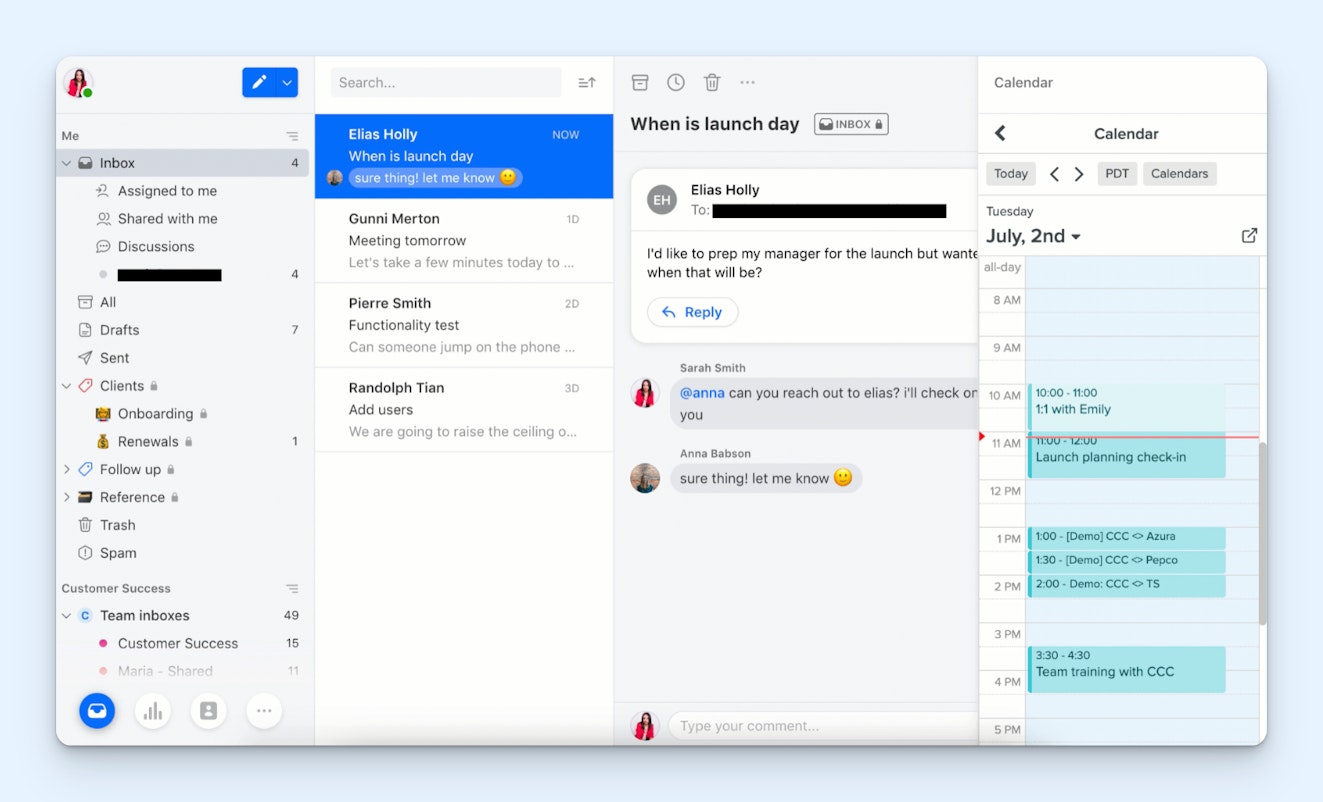
Front is unique because it's a fully functional help desk system that lets you manage both personal and shared email accounts. Of course, you can also do that with tools like Gmelius, Emailgistics, and Drag that work on top of Gmail or Outlook, but for help desk platforms with a shared inbox feature, it's rare.
The ability to manage both types of emails in Front makes it an appealing option for professional services firms that communicate with clients through both one-on-one emails (e.g., jessica@) and shared emails (team@). When replying to emails from any inbox, you can select which email address to use as the reply-to email that shows up in your response.
While personal email inboxes are generally only accessible to the individuals they belong to, they can also be shared with coworkers when needed. You can assign an email to a teammate to give them access to that specific email only, or you can delegate temporary access to your entire inbox to a coworker who's covering for you while you're out of the office. There's even a feature called guest collaborators that lets you tag in anyone you need help from, even if they don't have a login for the system.
As far as its shared inbox, Front comes with all of the features you'd expect: manual and automated assignments, customer profiles, internal notes, collision detection, saved replies, tags, and workflows. Front's AI can either automatically reply to or draft replies to emails for you, analyze your data to tell you the most common reasons customers email you, or even QA all of your interactions to let managers know where issues might exist.
Finally, as a help desk, you can use Front for more than just team email management if you need to. It also has features to let you deliver support through live chat, Facebook Messenger, Instagram, X, and WhatsApp, and you can also use it to create a knowledge base your clients can use to self-serve.
Key features
Manage personal and shared email accounts in the same system.
Create rules to automatically route emails to the correct person or team.
Tag people and leave private comments on emails to collaborate internally or externally.
Use AI to automatically reply to emails or to draft responses to emails.
View reports on customer satisfaction scores, response times, and more.
Get AI-generated reports showing which topics customers email you about the most.
Pricing
Free trial available. View Front's current pricing.
Recommended Reading


6. eDesk – Best for ecommerce companies

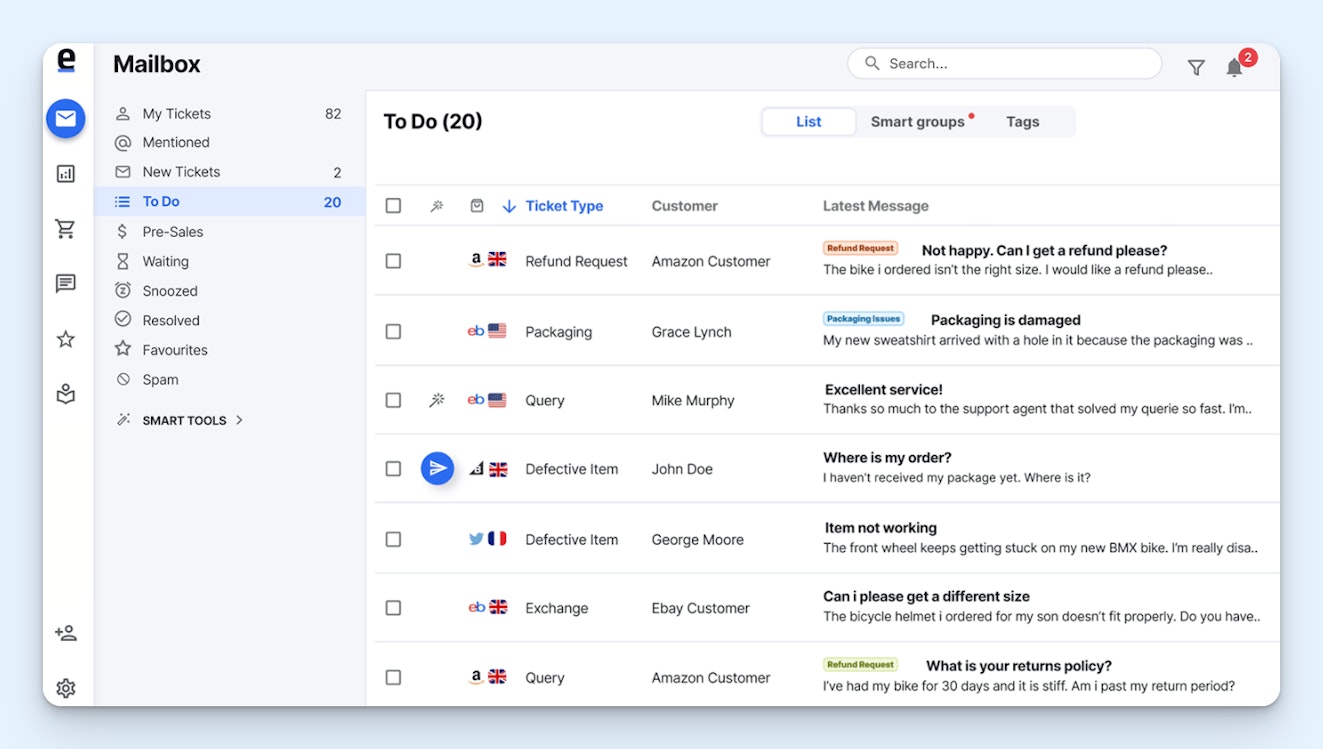
For ecommerce companies, eDesk is a great option. It integrates with all of the systems ecommerce shops use most often, including CMS systems like Shopify, Magento, BigCommerce, and WooCommerce; marketplaces like eBay, Amazon, Walmart, and TikTok Shop; and social media and messaging platforms like Facebook, Instagram, and WhatsApp.
In eDesk's shared inbox, you'll be able to see not only email requests you've received but also requests from any of the marketplaces or social media platforms you've integrated it with. Customer profiles show you who you're talking to and what they've ordered, and for platforms like Shopify, you can even process returns, cancel orders, and issue refunds without leaving eDesk's interface.
You'll also get access to standard shared inbox features like internal notes, reports, and collision detection. Set SLAs for response times, create filters to see only the emails that are most important for you, tag emails to keep things organized, send CSAT surveys to customers automatically after their issues are resolved, and share secure links to emails to collaborate with external parties.
For AI features, eDesk offers an AI agent that can automatically respond to requests from any channel. That includes email, the marketplaces and social media sites you've integrated with, and even live chat if you opt to use that feature of the platform. If you don't want to hand everything over to AI, you can also use its AI Composer to create draft replies, translate replies, or change the length or tone of a reply.
Key features
Connect your shared inbox to Shopify, Magento, Amazon, TikTok, and more.
Share email tickets with external parties like suppliers and shippers.
View customer order details and tracking numbers in a sidebar for every email.
Add tags to emails to organize them in terms of topic or priority.
Use AI to automatically reply to emails or write draft replies.
Automatically send review request emails to customers after they receive support.
Pricing
Free trial available. View eDesk's current pricing.
Recommended Reading

7. Hiver – Best free shared inbox software

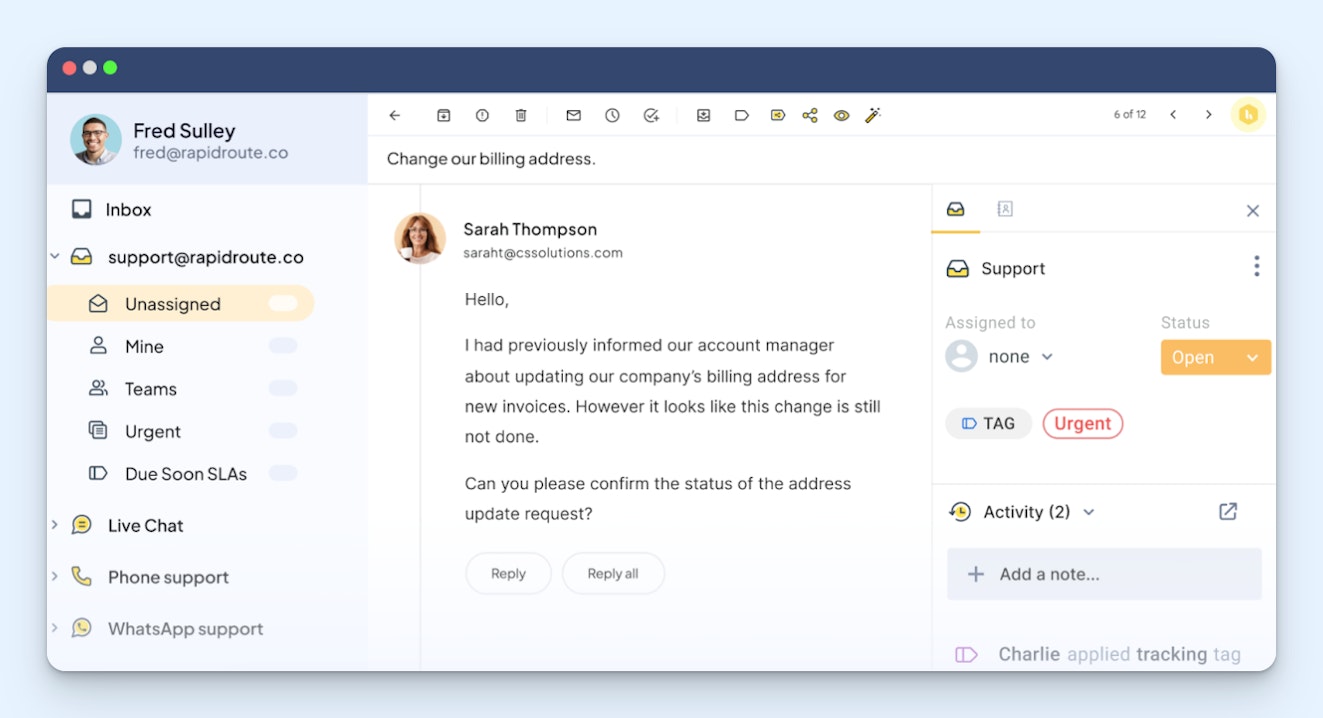
Hiver used to be an extension that worked on top of Gmail and Outlook like Gmelius, Drag, and Emailgistics, but it's recently rebuilt its system to be platform-agnostic. Now, Hiver can be used without having to sit on top of those other platforms, and it offers a free plan that's one of the most generous of all of the shared inbox platforms on the market.
On Hiver's free plan, you can add unlimited users and reply to an unlimited number of requests. You get a shared inbox for managing email requests, and you can also use it to manage live chat requests. Share draft replies with other team members to collaborate on them before sending, or create permalinks to share emails with external parties. You can even build and publish an external knowledge base.
Keep in mind that while Hiver's free plan is generous, it does have several limitations. You won't get access to the platform's collision detection feature, you can only create a single shared inbox, and you can only create one tag and one email template per account. However, these are features you can easily work around as a small business with a minimal budget to spend on tools.
Hiver's free plan doesn't include any of the platform's AI features, so if you want to automate your email management, you'll have to upgrade to a paid plan to get access to those. On Hiver's Growth plan, you can use AI to summarize conversations and refine copy you've written; on the Pro plan, you can use AI to draft replies to emails and detect sentiment; and on the Elite plan, you can use AI to QA all conversations.
Other shared inbox features you'll get access to on a paid plan include the ability to create an auto-response email to let customers know you've received their requests, round-robin and skill-based routing automations, rule-based automation workflows, SLAs, and business hours that stop SLA timers when your team isn't actually working.
Key features
Have unlimited team members manage unlimited emails at no cost.
Tag teammates with @mentions in private notes.
Share draft replies with coworkers to get feedback before hitting send.
Create secure links to share emails and responses with external parties.
See other conversations your team has had with a customer.
Create custom views to only see the emails you need to take action on.
Pricing
Free plan and trial available. View Hiver's current pricing.
Choosing the best shared inbox software for your team
Knowing which options are available and the key features to look for is a great starting point when shopping for shared inbox software, but it’s only a start. In order to find the best fit for your team, you’ll need to take a few more steps.
Involve your team in the process
The best people to help you select a platform are your team members. They’re the ones with their hands on the wheel every day, and they may be more reluctant to adopt the new system if it doesn't work the way they need it to. Approach the selection process as a leadership opportunity for at least one full-time individual contributor and one manager.
Understand the weaknesses of your current system
Send out a survey to your team asking where your current system is failing to meet your organization's needs. Make sure to go through any big-picture takeaways from their responses as a group to make sure you understand their greatest insights. All of these details set the foundation for you to understand how a new tool can fit within the larger context of your email support strategy.
Test solutions that align with your needs
Using the key priorities your team has already identified, narrow down the list of potential shared inbox tools to a handful of options.
From there, set aside time to test them all. Ask the team members you appointed to use the software the way they would every day. Run reports, create saved replies, assign conversations to team members, and respond to emails.
As simple as it is to select the software with the most bells and whistles, take the time to hone in on the options that make it easiest to serve your customers' needs while aligning with your organization's values.
Finally, determine if the solution has the same level of support that you aspire to provide. Reach out to their support team and see how quickly and thoroughly they respond; if they don’t live up to your expectations, their software won’t either.
By following this process, you'll be able to find a shared inbox platform that gives your team the exact tools they need to deliver exceptional support to your customers.
Jesse Short
After spending a few years working as a support agent, Jesse made the switch to writing full-time. He is a Help Scout alum, where he worked to help improve the agent and customer experience.
Jessica Greene
Jessica Greene is a Help Scout alum, where we make excellent customer service achievable for companies of all sizes. Connect with her on LinkedIn or through her website.