A Comprehensive List of Help Scout's Features


Have you ever researched an online tool via their website and came away scratching your head, unsure of what they even do? If not, you’re lucky, because those of us on the Help Scout marketing team certainly have!
Because of that, we’ve put a lot of effort into Help Scout’s site to make it informative and easy to scan and navigate. However, there’s no way to get everything onto our home and product pages; there’s only so much space.
That’s why we’ve created this list of (literally) all of Help Scout’s features.
If you’re wondering what Help Scout is all about, and whether we have everything on your must have feature list, read on.
Note: While this post is intended to be a comprehensive list of current Help Scout features, we’ve also added in a few features that are coming soon. If you’d like to be alerted when they go live, sign up for updates.
An intro to Help Scout
Before we dive in, let’s talk about what Help Scout is:
Help Scout is a customer communications platform with features that help you build better relationships with your customers and clients.
We have customers in many industries — from education to healthcare, ecommerce to property management, and SaaS to manufacturing — so even if you don’t think of your work as traditional “customer service,” Help Scout may still be the right tool to help you receive, reply to, and organize all of your communications in a single place.
The Help Scout product lines
Help Scout offers four main product lines, each focused on a different aspect of communication: Inbox, Envoy, Copilot, and Signal. This post breaks down all of our features according to where they sit within those lines. We’ll introduce each product before diving into its supporting features.
We’ll also go over our administrative features, integrations, and mobile apps so that you can have a full understanding of how Help Scout can help you meet your communication needs.
Recommended Reading

Inbox: shared inbox, live chat, and knowledge base features
Inbox is the foundational Help Scout product. It's the centralized place where you receive, manage, coordinate on, and store all of your customer conversations from all channels.
In addition to the emails, chats, and messages themselves, Inbox stores key contextual information about everyone who contacts you and their organizations. This means that no matter how the customer reaches out or who on your team responds, each interaction feels personalized and comprehensive.
Beyond the actual Inbox itself, this part of our product is also home to our knowledge base builder, Docs. Creating and maintaining high quality documentation for both your customers and team can reduce the amount of messages that reach your team and help speed up the resolution of the ones that do.
Shared inbox features


Help Scout is most well known for its shared inbox. Back in 2011, Help Scout’s founders, Nick Francis, Jared McDaniel, and Denny Swindle, set out to create a shared email inbox that was not only easy to collaborate in but also gave their customers an experience that was closer to emailing with a friend than a cold or impersonal business.
Today, Help Scout does a lot more than just let teams deliver email support. It can handle email, live chat, Facebook Messenger, Instagram DMs, WhatsApp and SMS messages, and contact form submissions all from within a single shared inbox.
Depending on your Help Scout plan, it’s also possible to have more than one Inbox tied to your account:
Free plans include one Inbox.
Standard plans include up to two Inboxes.
Plus plans include up to five Inboxes.
Pro plans include up to ten Inboxes.
Additional Inboxes can be added to any paid plan for $10/month for those on annual plans or $12/month for those on monthly plans.
Messages can easily be routed back and forth between Inboxes using automatic workflows, and if you ever decide that you don’t need an Inbox, it’s easy to consolidate them later.
Help Scout support channels
Before we get into all of the features available in a Help Scout Inbox, let’s take a quick look at all of the channels that can be routed into Help Scout and how they work.
Email and contact forms
When you create an Inbox, you get a complimentary email address at your account’s Help Scout subdomain (e.g. shipping@jg-clothing.helpscoutapp.com’). If you’d like to use this as your email address, then you’re all set!
However, most people prefer to use their own email address. To do that, you’ll set up forwarding that redirects email from your existing address (e.g., contact@company.com) into Help Scout. Once that's set up, you’ll be able to send and receive email through Help Scout just like you would using any other email tool.
Aside from your primary address, Help Scout lets you add additional email addresses to your Inbox as aliases so that you can manage multiple streams of messages all in a single Inbox.
Help Scout also allows you to create a contact form so that your customers can send you an email directly from your website or from within your app.
Live chat

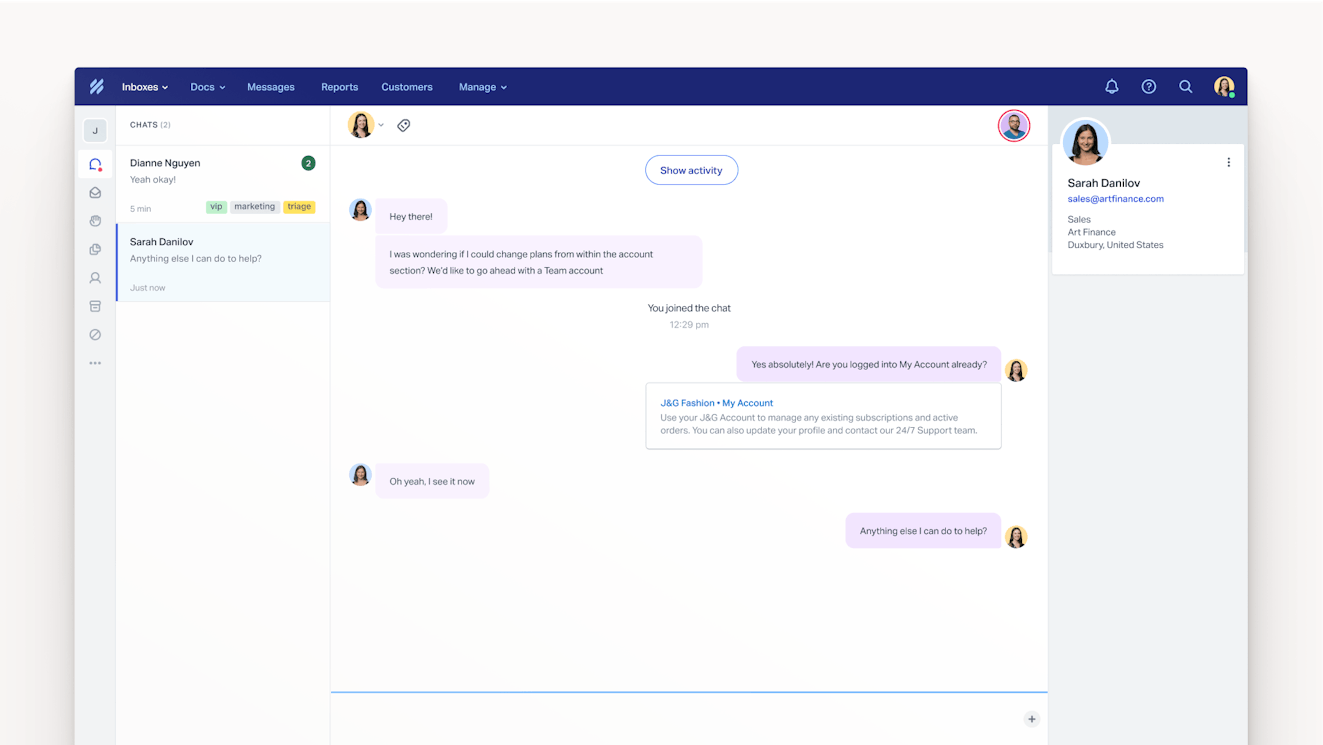
Live chat is supported natively in Help Scout. When enabled, you can offer your customers chat from any webpage or from within your app. When customers start a chat, it lands in the chat view of your Inbox so that your team can manage them right alongside messages from the rest of your channels.
There are several chat-specific features in Help Scout that are important to know. However, they’ll be a little easier to understand once we’ve had the chance to cover more of Inbox’s functionality. If you’re more interested in live chat than the other channels, though, feel free to skip ahead to the "Live chat features" section of this post.
Facebook Messenger
If your customers prefer to reach out via your business’s Facebook page, you can connect that page with your Help Scout account. Once connected, any Facebook Messenger requests you receive will also land in your Inbox, where you can reply to them just like any other message.
One thing to know, however, is that Help Scout doesn’t support comment management for wall posts, so those will still need to be managed on Facebook.
Instagram DMs
Similarly, if you do a lot of customer communication through Instagram, you can connect your Instagram business account to Help Scout to manage Instagram DMs in your Inbox.
Instagram post comments can’t be managed within Help Scout.

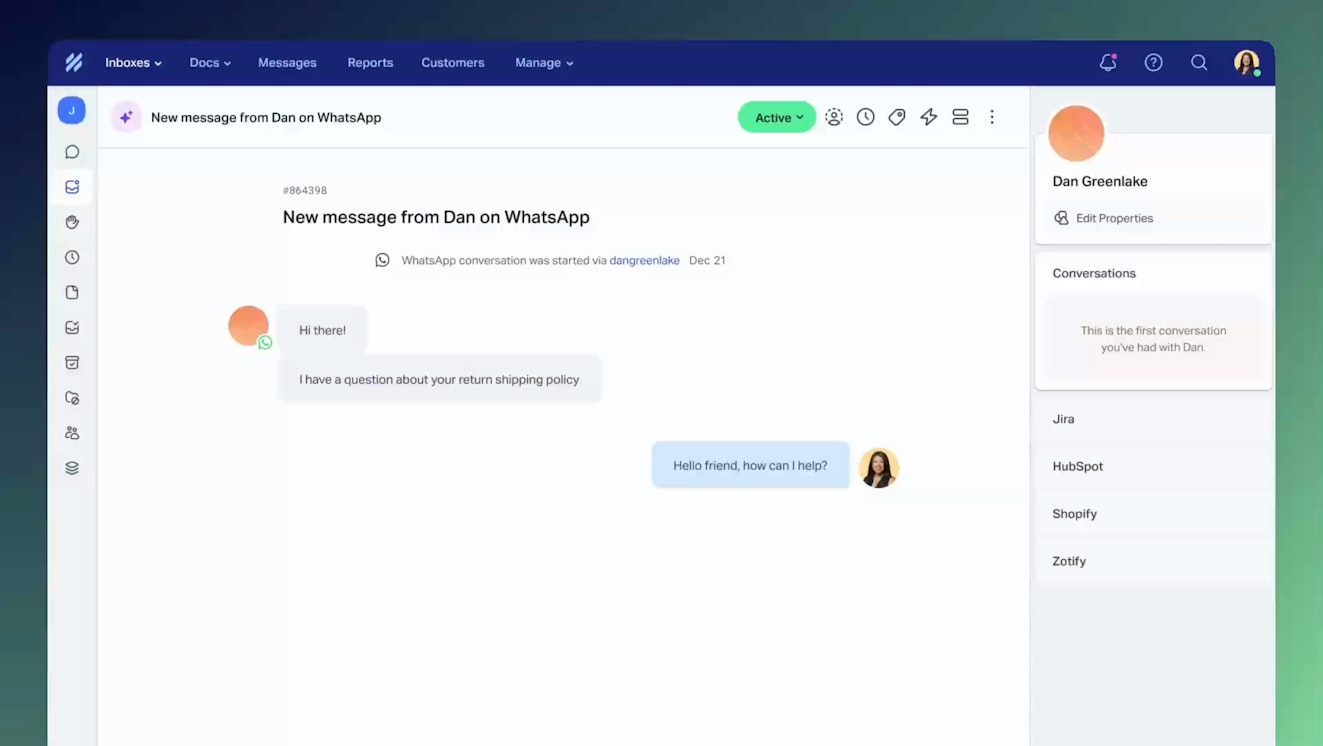
If you have a WhatsApp Business Platform account and a Meta Business Portfolio, you can also receive and respond to WhatsApp messages from your Help Scout Inbox.
SMS


It’s also possible to receive and respond to text messages sent to your business number from a Help Scout Inbox. All you need is a phone number provisioned by Twilio.
Customer portal


You can set up a customer portal to provide your customers with a secure, authenticated way to view and manage their conversations with your company. Once logged in, they can see all of the conversations that they and the rest of their organization has had with you, and they can reply to existing messages or create new ones.
Customer portals are a great option for businesses that must remain HIPAA compliant.
Voice and phone notes


Help Scout doesn’t offer native phone support. However it does integrate with several voice platforms like Aircall, JustCall, and Talkdesk.
Most of these integrations will allow you to document calls you make or voicemails you’ve received on those platforms in Help Scout. With Aircall, the integration goes a bit deeper — you can actually initiate calls from within the Help Scout Inbox so you don’t need to switch between apps.
Help Scout also offers the option to manually document phone notes if you prefer.
Recommended Reading

Conversation management in Help Scout
Once all of your conversations are in the Inbox, Help Scout offers tons of features to make working through your queue easier.
Create conversations: In addition to receiving incoming messages from your various channels, you can also create conversations (email, SMS, and phone note) proactively.
Reply to conversations: Reply to any incoming conversation just like you would in any other email tool. It’s also possible to reply by email if you have email notifications turned on.
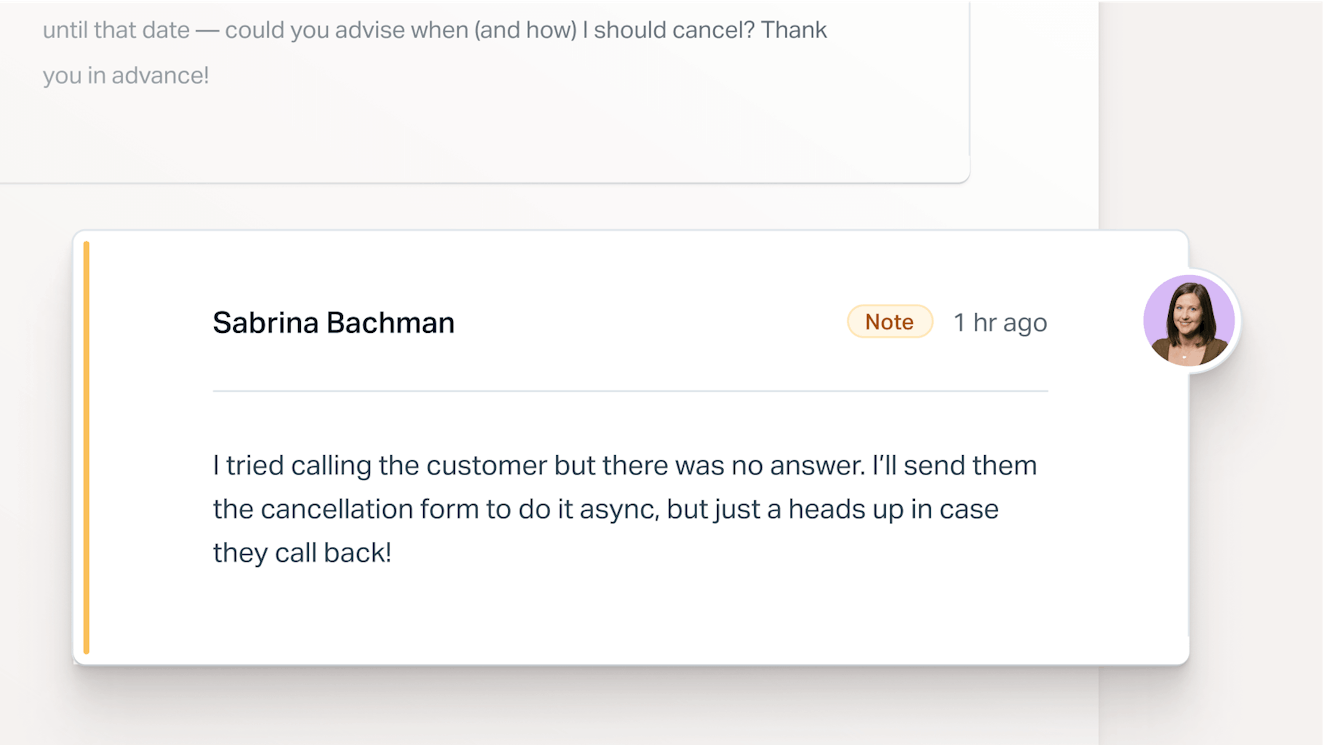
Leave internal notes: Leave private notes right in the conversation that are only visible to you and your team. Use them to provide context for others who may be reviewing the request or to collaborate with other team members. You can also edit internal notes if you notice a typo or need to add information, or delete the note if it’s no longer needed. Deleted internal notes are not stored in Help Scout after you delete them.
Set conversation status: Unlike with regular email where your options are just ‘read’ or ‘unread,’ Help Scout allows you to set conversation statuses so that everyone on your team knows whether or not a conversation needs attention. In Help Scout, you can set a conversation to one of three statuses: ‘active,’ ‘pending,’ or ‘closed.’
Edit (or hide) threads: Edit or hide threads to exclude content from your replies. This is useful for situations where a customer included sensitive information (like a credit card number) in their message. The original is still accessible in Help Scout (unless you delete it), and Administrators can decide who has access to the feature.
Schedule a reply: If you need a response to go out at a certain time, you can schedule replies to be sent later instead of sending them right away.
Snooze a conversation: When you don’t have enough information to respond to a request or you’d prefer to handle it at another time you can temporarily snooze a conversation to remove it from your active queue and have it return at a later date/time that you select.
Change contact: If you need to direct your replies to a different person than who you’ve been interacting with, you can change the contact for a conversation.
Forward conversations: Help Scout has tools for collaborating with your team right in the conversation thread. But if the person you need to speak to doesn’t have Help Scout, you can forward a conversation to them.
Merge conversations: Sometimes a customer will send more than one message about the same issue. When this happens you can merge multiple conversations into one, making them easier to keep track of.
Move conversations: For accounts that have more than one Inbox, you can move conversations from one Inbox to another without forwarding the message.
Use variables: Help Scout supports using variables. This lets you automatically add someone’s name, title, email address, and more to a message.
Use an Inbox signature: Email signatures in Help Scout are set at the Inbox level, meaning that the same signature will go out on every message, regardless of who sends it. For those who would like to personalize them a bit, signatures can include images and variables. This means that you can use variables to insert the responding employee's name and contact information upon send.
Track opens: By adding a pixel to your outgoing messages, you can track when someone opens your email. Once it’s been opened, you’ll see a note with a time stamp on the thread in Help Scout.
Add Conversation IDs: Although Help Scout was created to eliminate the impersonal feeling that comes with including ticket numbers in support emails, the company recognizes that some people find them helpful. Conversation IDs can be added to saved replies and other text using variables. In addition, if you need them added to the subject line you can send a quick email to the Help Scout support team and they can turn the feature on for you.
Set redirect options: Decide how you want Help Scout to behave after you perform a conversation action by setting your default redirect options. For instance, after you send a reply, you can choose to stay on the same page, send and return to the folder/view, or send and move to the next active conversation in the folder/view. You can also choose a redirect option manually each time you perform an action.
Lock a conversation: To prevent customers from replying to an old conversation for a new issue, you can set a length of time after which the conversation will be locked and any future replies will open as a new conversation. The new conversation will have a link to the original message in case anyone needs to reference it.
View recently deleted conversations: All deleted conversations are stored for 15 days or until manually purged. They can be viewed at any time during the 15 days in the recently deleted view.
Create pre-filled conversations: It’s possible to create links that create pre-filled conversations in Help Scout. With these, you’re able to pre-fill the customer’s email, phone number, any CC’s or BCC’s, and the subject line. This can be helpful when linking to a contact from another website or application, like an internal CRM.
Track customer satisfaction (CSAT): Enable customer satisfaction surveys to automatically attach one to each reply. The surveys are simple, allowing customers to rate the reply good, bad, or ok, and they include a text box where customers can elaborate if desired. The copy used in the survey can be modified to better suit your brand’s voice and tone.
Search conversations and Docs: You can search all conversations and Docs (knowledge base) articles in your Help Scout account using either a full text search or by filtering using search operators. Search operators help you make your search more specific and narrow down your results to only the most relevant.
Use keyboard shortcuts: Keyboard shortcuts allow you to quickly navigate throughout Inbox and other parts of the product without needing to lift your hands from the keyboard.
Receive notifications: Get notified for new email or chat conversations, replies, assignments, private notes and @mentions, and more. Notifications in Help Scout can be received and viewed in the desktop app, via email, as browser notifications, or in the mobile app. You can control which notifications you receive and where you receive them.
Filter out spam: Help Scout’s spam filter learns from which conversations you mark as spam, helping keep clutter out of your Inbox.
The conversation editor in Help Scout is easy to use. You can add standard text formatting (bold, italic, underline, strikethrough, code, blockquote, and ordered or bulleted lists) using either markdown elements or the formatting menu.
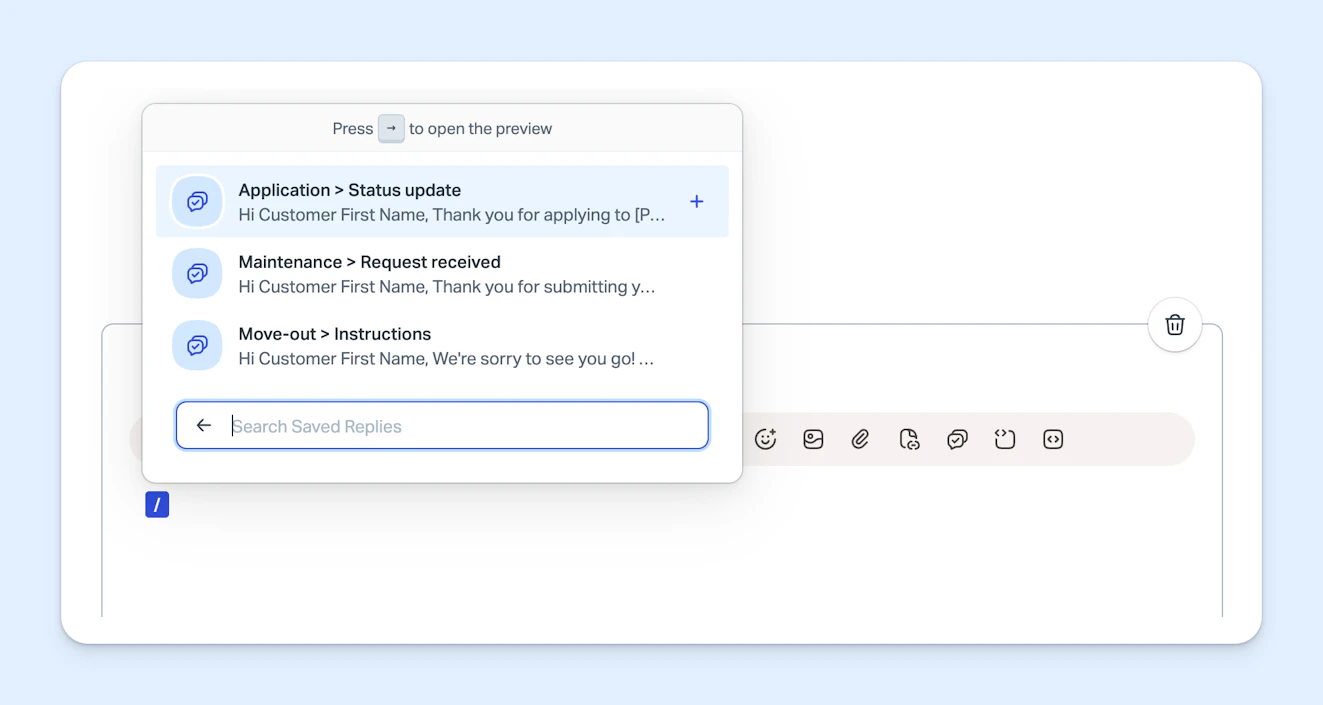
There is also a shortcut menu that lets you attach files, browse and insert saved replies or Docs (knowledge base) articles, add images or emoji, and more.
Organization in Help Scout

A benefit of using a shared inbox tool like Help Scout is that it provides extra ways to organize your conversations. This makes it easier to create automations, spot trends, or create reports that reflect the types of requests you’re seeing in the Inbox.
Tags: Create color-coded tags (labels) to be used throughout your Inbox to help keep track of certain topics. You can use tags for just about anything, but common uses might be to mark conversations where customers reported a specific bug or requested a new feature. You could also use them to label the type of conversation (shipping, billing, etc.) or whether or not the request is urgent.
Custom fields: Custom fields are similar to tags, but they allow you to get a little more granular. They can be formatted as a drop down, single line, multi-line, number, or date field, and you can require a custom field to be filled in for every conversation prior to it being closed.
Default views: Views help you focus on a specific subset of requests. Help Scout comes with a set of default views which include "unassigned," "mine," "drafts," "assigned," "closed," "spam," and "chat."
Custom views: Beyond the default views, you can also set up custom views that allow you to view conversations by criteria that you set. Some of the conditions include conversations with a certain tag or custom field, a specific assignee or customer, or whether the conversation has a positive or negative satisfaction rating.
Column management: You can also use the Inbox’s column management features to customize the information shown when you’re viewing your queue. For example, you can decide if you want to see the customer’s photo, the thread count, which tags are attached to the conversations, or how long a customer has been waiting for a response. It’s also possible to create your own column values.
Customer success features


One of the best parts of using Help Scout is the ability to store contact and company information inside of the tool. This makes it possible for you to look up information when responding to customers or clients without switching to another tab or window.
Contact profiles: Each time a person contacts you, a contact profile is created. It contains important information like their name, contact information, title, avatar, past conversions with your team, and any notes that your team adds about the customer.
Company profiles: Similarly, a company profile shows important information about the companies that your contacts work for. A company profile has its name, email domains and websites, contact information, and logo. You can also see all of the conversations a company has had with your team and all of the contacts associated with that company.
Merge or delete profiles: Sometimes you wind up with multiple profiles for a contact or company, so Help Scout allows you to merge profiles. It’s also possible to delete profiles as well.
Contact / company properties: While these profiles come with the set grouping of fields mentioned above, it’s also possible to add your own contact and company properties. This allows you to collect, store, and display the information that is most important to you and your business.
Conversation sidebar: The conversation sidebar is shown next to every conversation in Help Scout. Upon opening a conversation, it will display important information about the conversation (status, assignee, SLA, sentiment, and Topics), as well as the contact profile for the sender and their company. In addition, you can add pre-built or custom apps to your sidebar to bring information from third-party systems (CMS or ecommerce platforms, bug or product management software, etc.) into your Inbox.
Customer and company lists: The company and customers lists allows you to view and search through all of your contacts and companies.
Team collaboration features

Aside from these inbox basics, Help Scout also has several features that are specifically designed to help teams manage incoming messages more effectively:
Manual assignment: Assign conversations to an individual person or team to provide accountability and to ensure that each conversation is handled by the best person for the job.
Collision detection: Visual cues within the inbox and on individual conversations let you know when someone is viewing or replying to a message. Collision detection also warns you if someone has sent a reply while you were typing to prevent duplicate responses.
Saved replies: Build a library of templated responses for all of your most common questions that can be used by anyone on your team and inserted into a reply in a couple of clicks. Saved replies keep your responses uniform and speed up response time.
Teams: Create teams to assign subsets of conversations to specific people. For instance, you can create an “Escalations” team for tougher cases or a “Marketing” team for inquiries about your website or partnership opportunities.
@mentions in notes: If you need help from a teammate, tag them in a private note and fill them in on what you need. This allows you to collaborate right in a conversation thread, preserving context.
Light users: Light users are Help Scout seats that are free of charge and designed for people who regularly need to access your Help Scout account but don’t directly communicate with customers. They can read conversations, leave and be mentioned in private notes, view reporting dashboards, and create help center articles, but they can’t reply to outgoing messages.
User status and availability: Set your status and availability to let everyone on your team know when you’re available (or not available) for an assignment or to help with a case.
Follow a conversation: If you need to stay up to date on a conversation that isn’t assigned to you, you can choose to follow it and receive a notification when the thread is updated with a customer or company reply, a private note, or status change. This can be helpful when a manager needs to stay in the loop on an important case, or if you don’t know the answer to a question and want to learn from how a teammate answers it.
Support automation features
While you may jump straight to AI when you think about automation — and don’t worry, we’ll definitely talk about Help Scout’s AI capabilities later in this post — there are a few rule-based automations that are worth familiarizing yourself with.
Workflows
When it comes to removing busywork from your day, workflows can be life changing. Workflows accomplish tasks by following a set of conditions that you specify. In other words, you tell Help Scout, “If this happens, then do this.” And it does.


You can use workflows for all sorts of things like automatically tagging incoming messages, assigning certain types of emails to specific people or Inboxes, closing and marking spam, adding private notes, and more. You can even perform multiple tasks using a single workflow.
In Help Scout, there are two types of workflows:
Automatic workflows: These, just like you would expect, are workflows that run automatically whenever a new message is received. Automatic workflows only run once, though you do have an opportunity to run a new (or updated) workflow on previous conversations when setting it up.
Manual workflows: Manual workflows are tasks that you want to run on demand vs. on every conversation. This is handy when there is a set of actions that you frequently perform on certain types of messages and you’d like to execute them quickly. For instance, maybe you want to add a tag, send a predefined email, and then close a conversation. With a manual workflow, you just have to click one button, and Help Scout does the rest.
Just like with tags or saved replies, your store of created workflows often grows dramatically over time. Because of that, Help Scout has a dedicated workflow management area that can show you whether a workflow is active and how many times it’s run in the past 90 days, as well as point out any workflows that need your attention.
Automatic routing


One piece of busywork that can really take up time is triaging your Inbox. Although you can use automated workflows to assign and route incoming emails, Help Scout also has dedicated automatic routing features to help distribute incoming requests amongst your team(s).
There are two types of automatic routing in Help Scout:
Round-robin: This type of automated routing assigns conversations to teammates in sequential (alphabetical) order.
Load balanced: Load balanced routing assigns each conversation to the person who has the fewest number of active conversations.
When team members are available for conversations to be routed to them, routing features assign new conversations in real-time. When no one is available, conversations aren't routed. However, when people become available for assignments again, the system always assigns the oldest conversation first to reduce your customers’ wait times.
When turning on automatic routing, you can select which people or team(s) are going to be included in the rotation and the maximum number of conversations each person can be assigned. Only eligible teammates receive assignments, so if someone has set their user status to away or if they’re over the limit for active conversations, the system will skip them.
Service level agreements (SLAs)

Service level agreements help keep your team accountable to the response and resolution standards that your customers expect.
You can create a policy that applies to your account broadly, or you can create multiple policies that have targets that vary based on the customer or company you’re working with. For each policy, you set a target time for first response time, time to resolution, or both metrics.
SLA status is shown in the Inbox, and you can sort your conversations by SLA to keep those conversations top of mind. The SLA status is also shown within conversations that are subject to the policy.
Additional automations
Aside from the automated features we’ve discussed so far, there are a couple of smaller features that are worth mentioning:
Auto-reply: All accounts, regardless of plan level, can set up a simple auto reply message for each of their Inboxes. This will let people who write in know that their message has been received. Auto-replies support variables for personalization and can also be used to set expectations for when the customer will receive a response from your team.
Company and inbox hours: Help Scout allows each paid account to set company hours. This is the schedule that tells the system whether or not your team is at work. This is an important setting because it affects your response and resolution times. Some plan levels also allow teams to set up separate Inbox hours. Inboxes can either inherit company hours, or each have their own custom schedules.
It is also possible to coordinate your auto-reply message with your company or Inbox hours. In this scenario, the auto-reply would only fire when your company or Inbox was outside of business hours.
Importing data into Help Scout
If you are coming from another help desk or shared email service, we’ve partnered with Import2 to provide an easy way to bring email and tickets into Help Scout.
It works with many popular providers like Gmail, Outlook, Zendesk, Intercom, Freshdesk, Gorgias, HubSpot, Agentforce (Salesforce) Service Cloud, and more. It can even be used to migrate data from one Help Scout account to another.
When it comes to knowledge base data, our Docs API can be used to import existing documentation. The Inbox API can also be used to build a custom import as well.
Help Scout uptime
You can always check the status of the Help Scout platform at: https://status.helpscout.com. The option to subscribe to status updates via email, SMS, webhook, or RSS is also available from the status page.
Beacon, Help Scout’s web widget
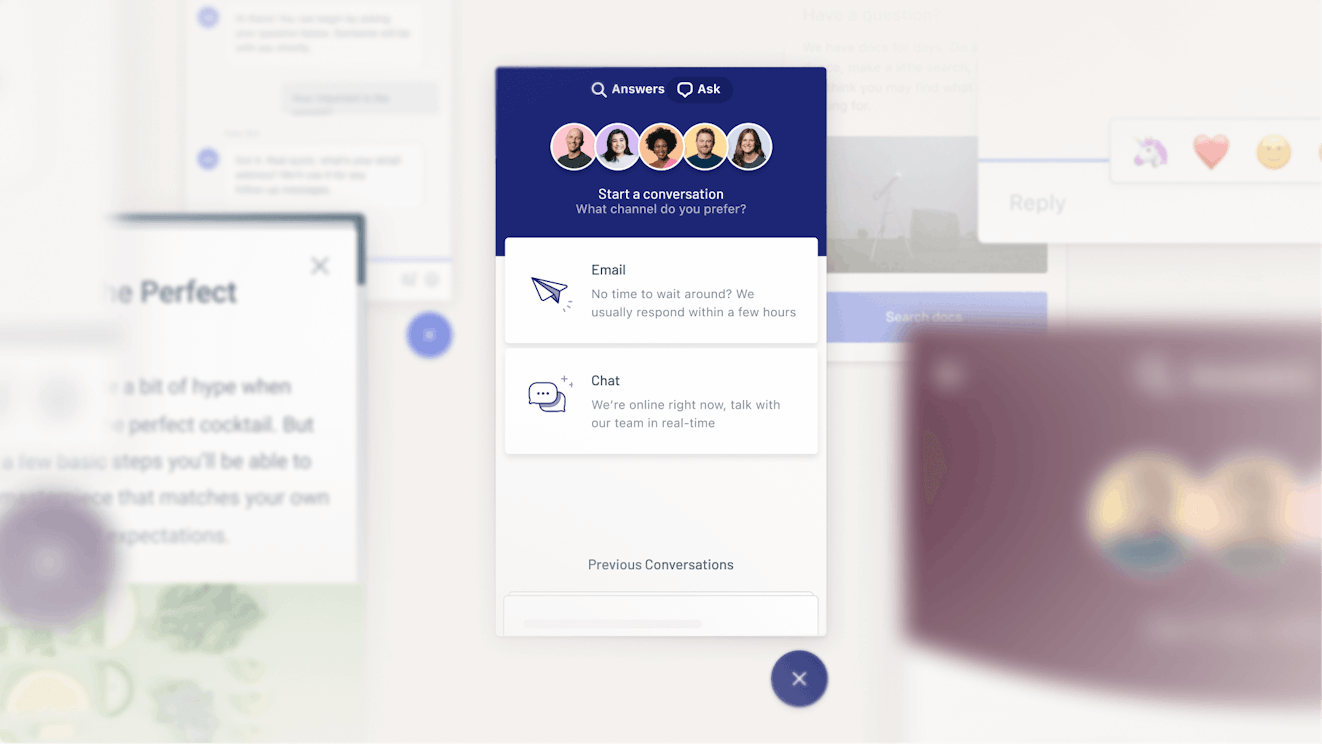
Every Help Scout plan comes with the ability to create a Beacon, Help Scout's web widget, and depending on your tier, you may be able to create many — each with its own settings and purpose.
Beacon is the home for several Help Scout features, but its primary role is to be an access point for your customers when they’re browsing your website or using your app. Through a Beacon, customers can contact your team via email (using a smart contact form) or initiate a live chat session. They can also browse your knowledge base articles within the widget or ask Scout, Help Scout’s AI agent, a question.
Though all of these things are possible, they aren’t turned on automatically. You can choose what options are available on each of your Beacons by choosing a mode — self-service, neutral, or ask first. Self-service will only show your help docs, ask first will let people know how to contact your team, and neutral will let the customer decide which option they’d prefer.
Installing a Beacon is as simple as copying and pasting a bit of pre-written code, and basic setup only takes a few minutes. Beacon settings are highly customizable, and you can choose color schemes, greetings, and labels that match your brand guidelines so that it fits right in wherever it’s installed.
Depending on how you’ve set up your Beacon, customers may also be able to view their past support conversations. This, however, does require some development know-how. For many, the customer portal we discussed earlier is an easier method for customers to review their conversation history with your team.
Finally, Beacons provide a lot of information about a customer’s behavior on your site or within your app. On the agent side of things, you can see information like the customer's device and operating system, which support articles they’ve viewed, and any questions they’ve asked Scout. When you view a conversation that began in a Beacon, this info will be right in the thread as a private note. If you have developer support, you can also add session data to this note, making it even more useful to your team.
Live chat features

Once you have a Beacon installed, it’s easy to start offering live chat to your customers and clients. We discussed the basics of how live chat works in Help Scout earlier in this article. However, now that you know more about the platform works, here are some additional chat-specific features that you should know about:
Accept or assign a chat: All waiting chats are visible within the chat tab of the Inbox. Users can click on a chat to review the issue and either accept a chat or assign it to another teammate. Once a chat is assigned, it cannot be sent back to the queue.
Saved replies for chat: Since chat requires shorter, often more casual responses than email, you can create chat-specific versions of your favorite saved replies to speed up responses and stay consistent.
AI assistance and automatic translations: In chat, you can use AI to help polish your responses before hitting send. It’s also possible to use AI to chat with the customer in their preferred language. Agents can type in their native language, and it is automatically translated for the customer to allow for smoother communication.
Shortcut menu: Like with other channels, there is a shortcut menu in chat that makes adding an attachment, saved reply, knowledge base article, or emoji to your reply easy. This is also how you end a chat or add a private note.
Chat availability: Separate from the user availability we talked about earlier, chat availability is focused only on whether a team member is available to chat (vs. answer emails, etc.). Users can decide whether they are available, only available to take over a chat from a teammate, or unavailable. There is also a custom option if you want to set different statuses in different inboxes.
Maximum chats: You can set the maximum number of chats each person can handle at one time. When the number is reached, the user’s status is automatically set to assign-only.
Chat notifications: Help Scout offers chat notifications both in-app or via your browser, enabling you to work on other tasks without missing any messages when live chat volume is low.
Chat transcripts: Choose whether or not you’d like to send customers a full transcript of their conversation with your team at the end of the chat.
Ending a chat: When a chat ends, in addition to sending transcripts to the customer (if turned on), an Inbox conversation is created as a record and so you can follow up easily if necessary. The assignee will also be asked to summarize the interaction.
Chat satisfaction (CSAT) ratings: Ask customers to rate their experience with your team with a simple satisfaction survey at the end of the chat.
Messages: Proactive messaging in Help Scout
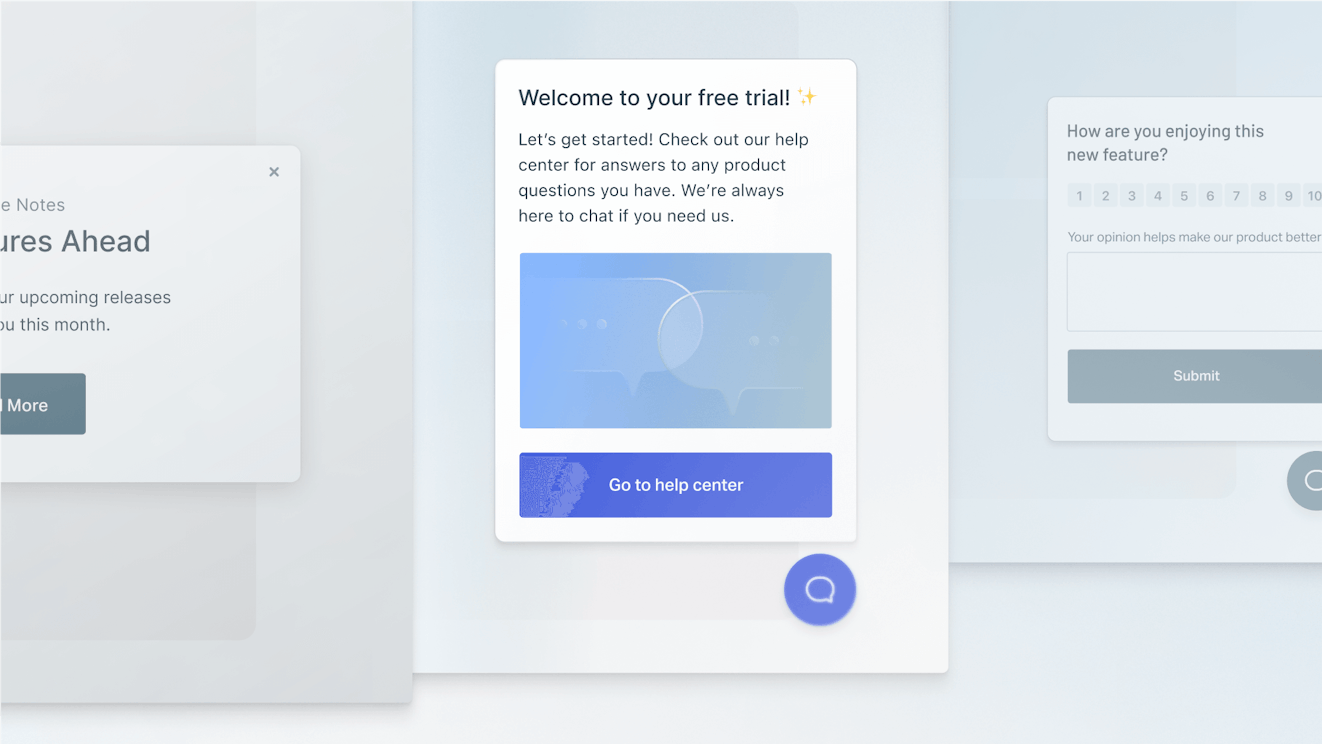
Sometimes you need to deliver information to a specific set of customers or website visitors. Maybe it’s advertising an upcoming sale, giving a heads up to clients about your holiday hours, or letting folks know about some planned maintenance that may affect their service. There are a lot of good use cases, no matter what business or industry you’re in.
In Help Scout, messages are implemented on your site or within your app by installing a Beacon — though the Beacon doesn’t have to be visible for a message to deploy. Once your Beacon is ready, there are five message types offered in Help Scout:
Standard: A message that pops up in the corner of your screen. It usually has a heading and some text, and you can add an image, video, and CTA button to it.
Modal: A message that pops up front and center, covering the content of your website or app. It’s bigger than a standard message and needs to be dismissed by the user for them to continue.
Banner: A quick message or alert that displays at the top of your website or app screen.
Microsurvey: Short surveys used to gauge sentiment in the moment. You can send a quick thumbs up/down poll, multiple-choice questions, polls where customers react with a happy/sad face or emoji, or even just a free text field where folks can type out their feedback.
NPS survey: This is also a survey, but it's focused on the Net Promoter Score metric.
You can also perform other actions like launching a Beacon, contact form, live chat window, or a help article using Messages logic. Messages can be styled many different ways so that you can get creative and stay within your brand parameters.
Here are some of the events, audience, and schedule settings that can trigger a message to be sent.
Events
Last page viewed: The message is shown based on the URL of the last page the user visited.
Page scroll: The message appears as the user begins to scroll on the page.
Page views: After the user visits any page with a Beacon a certain amount of times, the message is triggered.
Repeat page views: When the user visits the same page with a Beacon a specified amount of times, the message is launched.
Specific URL: The message pops up when the user loads a specific page.
Time on page: The message surfaces after a specified amount of time spent on a page.
Audience
When you configure your message, you can decide if everyone or only selected users will see the message. Selected people uses the Beacon identify feature and customer properties to surface the message (and does rely on a little bit of development help).
Schedule
You can schedule a message to go out immediately or schedule it for a certain time. If you’re sending out a survey, you can specify if you only want it displayed to identified viewers, though this option requires some developer setup. There's also the ability to define whether you want the same person to see the same message more than once. You can decide when they'll see the repeated message and how many times they'll see it.
Pricing
Messaging is one of the features in Help Scout that is priced based on consumption (i.e. how many you use). However, all paid Help Scout accounts come with a generous messages allotment of 2,000 free unique viewers per month.
Knowledge base features

Docs is Help Scout’s knowledge base product, and it gives you a code-free way to create a personalized help center for your customers (or your team).
Creating content
A Docs site consists of individual articles that can be organized into collections and categories:
A category is a grouping of articles that are about the same topic.
A collection is a group of related categories.
For example, you may have a separate collection for each of your products, each with several categories that discuss different aspects of the product, such as account setup, troubleshooting, or shipping and return policies.
Docs has a user-friendly editor that makes article creation easy. You can simply start typing like any word processing program, or you can paste your content in from somewhere else. Once inside the editor, you can use the in-line toolbar to apply formatting options like:
Bold
Italic
Underline
Headings
Alignment
Strikethrough
You can also add links to your text, add inline code, create lists, and more.
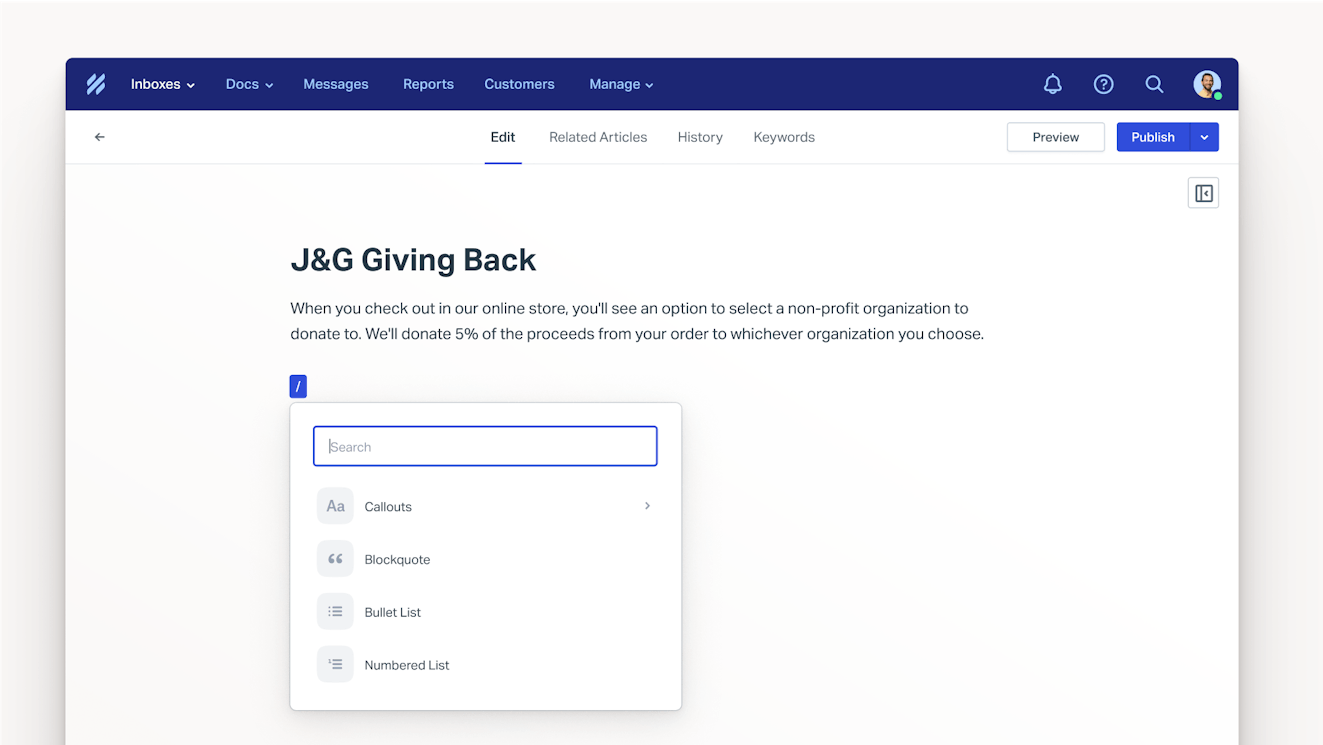
Beyond these basics you can also use the shortcut menu to add in more advanced formatting options and features:
Blockquote: Add an indented, quoted block of text to your help doc.
Callout: Create highlighted blocks of text to draw attention to key details.
Divider: Separate sections of your content using a horizontal rule.
Emoji: Choose from a list of built-in emoji to add personality to your text.
Image: Add PNG, GIF, or JPG files to your articles.
Video: Add YouTube, Vimeo, Loom, or Wistia videos inline without embed codes or extra formatting.
Table: Drop a table into an article to keep data neat and organized.
The Docs editor also allows you to work in HTML or markdown if you prefer.
Drafts in Docs are automatically saved so you never lose what you’re working on and it’s easy to hit preview and view what your article will look like in your help center before hitting publish. All published versions of an article are shown in the history section so that you can easily revert back if needed.
You can also choose related content to appear at the bottom of each of your published articles to help customers find information more easily.
If in the future you decide that you don’t need an article anymore, you can either unpublish or delete it. Unpublished articles stay within your account, along with their preserved version history. Deleted articles cannot be recovered.
AI assistance
If you need help polishing your text, some of Help Scout’s Copilot features are available within the Docs editor to help with spelling and grammar checks, adjusting length and tone, or even translating your content into other languages.
Customizing your Docs site


Docs is designed to work right out of the box without your team needing to know any code to get it up and running. Here are some of the things you can change to customize your help center without any help from your IT or development teams:
Site name: Change the name for your Docs site (ex. J&G Clothing Help Center).
Site visibility: Turn your site on (or off) for visitors.
Subdomain: All Docs sites have a URL structure that consists of a subdomain you pick and helpscoutdocs.com (e.g., jg-clothing.helpscoutdocs.com), though you can also use your own domain — more on that later.
Logo: Upload your business logo so it can be shown in the top left corner of your Docs site.
Favicon: Add a smaller version of your logo to display in browser tabs and on shortcuts or bookmarks.
Touch icon: Add an icon to be used when someone adds a bookmark of your Docs site to the homescreen of an iOS device.
Color defaults: Choose the colors used for your site’s background, header, links, etc. to match your branding.
Site information: Add your business’s home page URL so it can be used to point visitors back to your marketing site. You can also set the text shown above the search bar on the Docs home page and the meta description for the site.
Content order: Docs allows you to drag and drop articles, categories, and collections into the order you want them to appear on your site. Articles can also be displayed in alphabetical order or sorted by their popularity or last updated date.
Homepage layout: Customize the layout of your Docs homepage by having it start with a list of your documentation categories or a list of your most popular articles.
Beacon settings: Customize how the Beacon on your Docs site shows up by choosing which contact methods (live chat, contact form, or AI agent) are available, what Inbox incoming messages go to, whether you display your team’s avatars, and more.
While you don’t have to use development resources to get a Docs site up and running, if you do have the resources, there are additional ways to customize your site.
Custom domain: You can use your business’s domain name with your Docs site to make it more personalized (ex. help.jgclothing.com instead of jgclothing.helpscoutdocs.com). Technically you don’t need to code to set this up, but you will need access to edit your domain’s DNS records or zone file at your DNS hosting provider to complete the steps.
Custom CSS: Change the look and feel of your Docs site by adding your own CSS. Link to a stylesheet you’re hosting in your own space or upload a custom CSS file to your Docs site.
JavaScript: While we don’t recommend it, you can also customize the look and feel of your site using JavaScript.
Article styling: As mentioned earlier, you can also add HTML blocks and use inline CSS to style your articles.
Analytics code: Use tools like Google Analytics to track your Docs site’s traffic.
If any of the above customizations aren’t quite what you have in mind, your development team can also build a custom site and use the Docs API to pull in your Docs content from Help Scout. This option is obviously the most complex, but it does allow for total freedom and creativity.
Docs in Beacon

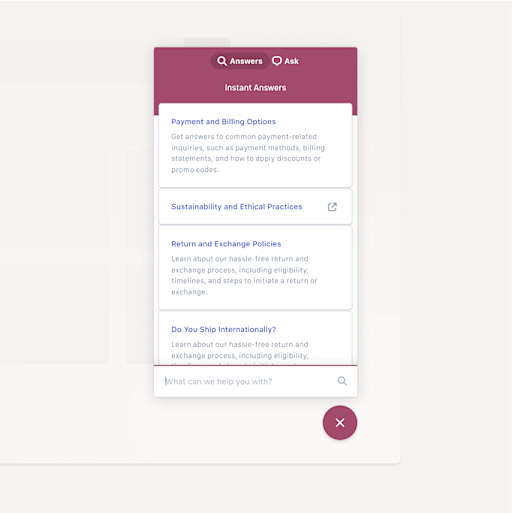
Another way for people to access your Docs content is through a Beacon. Beacons can be added to any website or within your app, and they allow your customers to view all of your help content in the moment without having to navigate away to another site.
As discussed above in the Beacon section, how your customers are presented with your help content depends on how the Beacon is set up. You can choose to set it to:
Self-serve mode: Customers see your help docs first and must search before your team’s contact options are shown.
Neutral: Customers see all available help options (Docs content, AI agent, live chat, email, etc.), and they can choose for themselves.
Ask first: Customers see your contact options before they’re shown the help docs.
You can set which articles customers see first when they access your help docs in a Beacon, helping ensure that the most helpful information is visible right away. You can also customize content suggestions based on the URL of the page the Beacon is installed on.
With development help, you can even open a Docs article from any link or button on your webpage. These embedded articles can display as a normal Beacon, as an inline popover, or in a sidebar or modal.
Internal and restricted Docs
While public help centers are the most popular use case for Help Scout Docs sites, it’s also possible to create Docs that are published for specific audiences.
Private collections: These collections are only visible to people logged into your Help Scout account. A private collection is ideal for setting up an internal knowledge base for your team.
Restricted Docs: A restricted Docs site is one that is only visible to people that you choose to let in. You control access to the site with your own visitor authentication. Setting this up will require development work by your own team using the Help Scout Docs API.
Beacon access: Another option for restricting access to a Beacon is to create a private Docs site (where visibility is turned off) and add it to a Beacon. Once set up, the content will only be accessible through the Beacon, which can be added to a webpage behind a login, inside of your app, on an intranet, or on any other non-public site.
Search engine optimization (SEO) / Answer engine optimization (AEO)
When it comes to documentation, you don’t want to stop at just getting your articles published. You also want to do everything you can to ensure that your audience can find what they’re looking for.
First, let’s talk about search within the Docs site itself. Help Scout provides a couple of features that can help improve your audience’s chances of finding the right information using your Docs site’s search bar.
Failed searches report: The first place to start is checking your Docs report for failed searches. These are searches where someone searched for something and received no results. If your site doesn’t have any content covering the topics, then creating new articles for them will improve your search results.
Keywords: If you do have content that covers those topics, but your customers were searching using different (or misspelled) terms, then adding those keywords to the articles will improve the results customers get when searching for those terms.
When it comes to external SEO/AEO for search engines like Google and Bing and LLMs like ChatGPT and Claude, here the Docs features you should know about:
Noindex code: You can decide whether or not you want your Docs site to be crawled and indexed by search engines.
Custom Docs URLs: Articles automatically have a slug (the last portion of a URL that identifies the individual page) that matches its title, but Help Scout allows you to customize the slug to use a more optimal term.
Redirects: Create redirects when you decide to combine or remove articles so that search engines (and your customers!) don’t hit a dead end.
Sitemap: Help Scout automatically creates a sitemap for your Docs site, making it easier for search engines and LLMs to discover all of your help articles.
And as mentioned earlier, you’re able to customize your site name and meta description, which also plays a role in optimizing your help center for external search.
Article ratings and popularity
Once content is created, you need a way to determine if your customers are finding it helpful. Docs has two features to help give you an idea:
Article satisfaction ratings: If you turn on article satisfaction ratings, customers will see the question “Did this answer your question?” along with a smiley face and a sad face. They can click either face to record their rating. Every visitor to your Docs site can rate an article one time, and results are displayed in the Docs report.
Article popularity: Each article’s popularity is based on article views. It can be used as a sorting parameter or simply to give you an idea of which topics are the most important to your customers.
All Help Scout plans come with Docs access, and all paid plans allow for multiple sites:
Free plans come with one Docs site and 10 articles.
Standard plans come with two Docs sites and unlimited articles.
Plus plans come with three Docs sites and unlimited articles.
Pro plans come with five Docs sites and unlimited articles.
Additional sites can be added to any paid plan for an additional $20/month for those with annual plans and $24/month for those who pay monthly.
Recommended Reading

Envoy: AI customer support agent features
Envoy is the home of Help Scout’s AI agent, Scout, its MCP, and in the future, what allows customers to bring their own agents (BYOA) to Help Scout.
Scout
Informed by sources like your knowledge base, your websites, and documents you choose to provide as source material, Scout can respond to your customers via a Beacon (installed on your website or web app) and through email* automatically.
When you set up Scout, you’re able to decide which sources it uses to back up its answers, adjust its voice and tone, and specify which conversations it handles autonomously and which it escalates to your human team.
Best of all, you’re able to test Scout in private, ensuring that the experience is a good one before you ever roll it out to real customers.
*Scout for email is coming soon.
Knowledge sources for Scout
An AI agent is only as good as its source material, which is why choosing the knowledge it draws from (and keeping it up to date) is so important. You can use several different types of knowledge to power answers in Scout:
Docs: Any Help Scout Docs site can be used as a knowledge source for Scout. Use these best practices when writing Docs articles to get even better results.
Websites: Any public website (including public Google Docs and Sheets) can also be added as a source. We recommend choosing specific pages on your site that have your best and most up-to-date information.
Documents: Scout can read and sync the information from PDFs, Word documents, or Excel sheets that you self-host and provide a link to.
Soon you’ll also be able to use past conversations (tickets) and app connections for things like payment processors and CRMs as sources for Scout.
Customize Scout to fit your brand and use case
One of the reasons that many customers and companies are afraid to give AI a try is that chatbots have a bad reputation for providing impersonal (and sometimes inaccurate) responses. Help Scout has designed Scout to give you complete control over the experience you provide to your customers and team.
Voice and tone: You can tell Scout important details about your business and customers that will affect its behavior, such as its name, your industry, and what kind of people you’re typically speaking to. You can also tell Scout how much detail it should go into when it answers, what tone of voice it should use, and whether or not it should use emoji in its responses.
Roles: Scout can be guided to alter its behavior depending on use case. By creating roles, you can decide how the AI speaks to different segments of your audience. For example, you may have Scout respond with extra details when talking to new customers or have it speak more formally when answering questions for one type of customer than it does for others.
Exclusions: If there are certain questions or scenarios you’d rather go to your human team, you can set up exclusions for Scout. When a chat request triggers an exclusion, the customer will be directed to reach out via email or live chat, depending on your settings. When the exclusion is triggered by an email, Scout leaves the email in your Inbox for your team to handle.
Test in private: Help Scout offers a sandbox where you can test Scout before launch. Test the AI’s ability to respond to your most common questions in a safe environment, and make adjustments to your sources or settings as needed before rolling it out to customers.
Reporting: Scout comes with reporting that shows you how many conversations it took part in, how many of those it was able to resolve, and the satisfaction rating it received on those conversations. In addition, you can drill down into individual conversations to see where Scout did well and where it could be improved.
Improvements: If you do spot areas for improvement when auditing conversations that were handled by Scout, you can enter them in as a text source. This is helpful when Scout was mostly right but missed a detail, or when the question was too specific to warrant an entire Docs article.
In addition, Scout can handle conversations in 50+ languages, including English, Spanish, French, Chinese, Japanese, German, Italian, and many more.
Pricing
A three month free trial of Scout is available to all new Help Scout customers. This gives you time to fine-tune the AI agent to your needs. Following the trial, you'll be charged $0.75 per resolution. A resolution is anytime Scout is able to resolve a conversation without your team’s help.
For those looking for more control over cost, it’s possible to set a spending cap at the account level to ensure that costs are kept predictable and in budget.
For more information, take a look at this help doc on Help Scout’s AI resolution pricing.
MCP
Help Scout offers a model context protocol (MCP) to allow you to connect Claude, ChatGPT, or your own internally created AI tools with your Help Scout account. Once connected, you can use the MCP to pull up customer conversations, customer details, Inbox data, and the content from your Docs site(s).
The MCP is currently read-only (though actions will be permitted in the future) and is available on all paid plans.
Copilot: AI assistant features for support teams

Copilot is an in-app assistant designed to help your human team respond to incoming messages. Located in the sidebar of every conversation in Help Scout, Copilot uses Scout to find answers, suggest next steps, and guide you through every conversation. You can:
Polish replies: Change a reply’s length or tone, check its spelling and grammar, or translate it into another language.
Draft replies: Draft a response to an incoming email in seconds. Edit or improve the draft before sending, or send it as-is with a single click.
Smart summaries: Summarize long conversations or threads so your team can get up to speed more quickly.
Soon Scout will be able to provide even more help in Copilot:
Suggestions: Take the stress out of queue triage by viewing automatically suggested actions (tags to add, suggested priority level, and next steps) for each conversation.
Search assistant: Ask a question about your product, policies, and more in natural language. Scout will comb through past conversations, your Docs site, web pages, or custom instructions to find the answer for you fast.
Signal: Reporting and customer insights features
Signal is the area of Help Scout that focuses on customer intelligence. It helps you spot patterns across conversations and make better, more informed business decisions.
Automatic categorization


While tags and custom fields are great organizational tools, they aren’t infallible. AI-powered Topics solves for this by automatically categorizing every incoming conversation as it hits your Inbox.
Topics are configured at the Inbox level, and once enabled, Scout will generate 8-15 topics. You can use them as is, edit them to your liking, or create topics of your own.
Once you’ve decided on a set of topics, Scout backfills the past month of conversations with your group of topics and categorizes any new conversations as they come in. Each day, the AI also runs a scan and checks for any emerging trends. If one is noticed, a new topic is automatically created for you.
Topics can be used to create custom views or workflows, as a filter for reports, or as an operator when searching Inbox.
Reporting
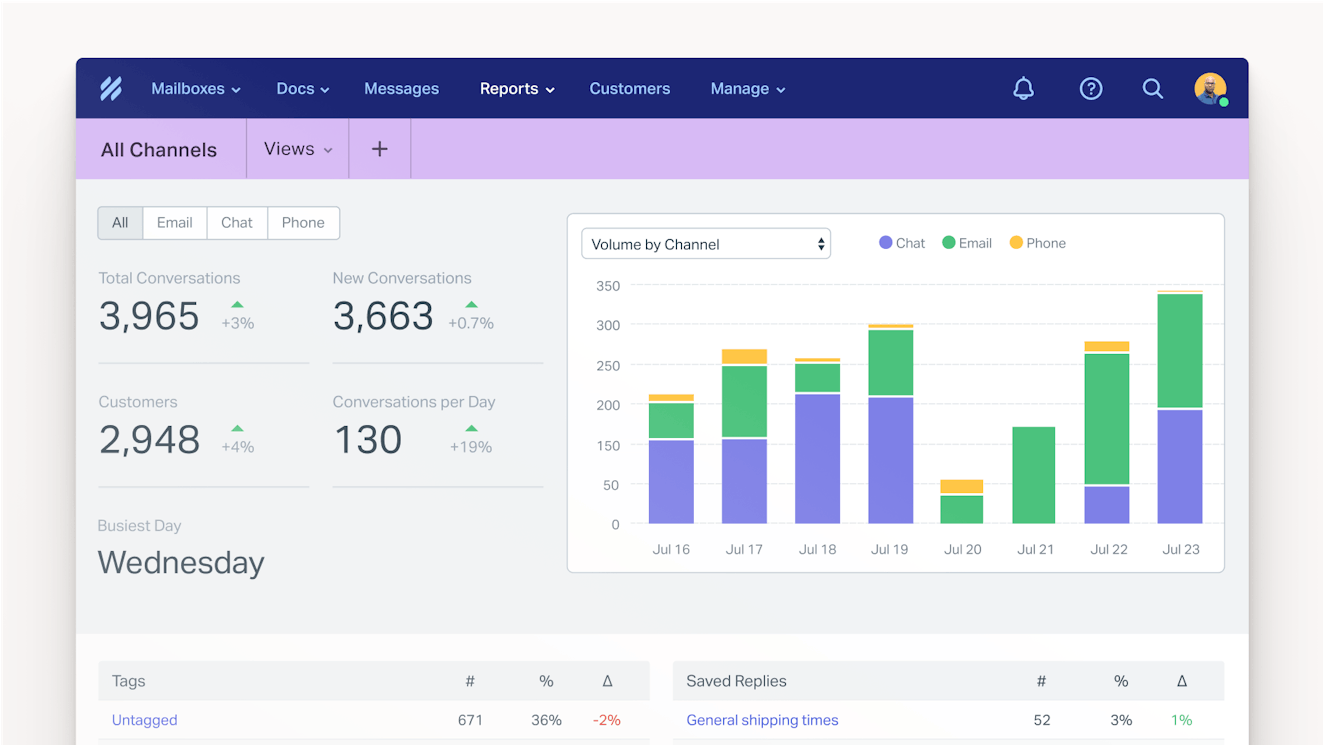
Your Inbox contains an immense amount of information about your customers, team, and business as a whole. One of the main benefits of using a tool like Help Scout over a basic email tool like Gmail or Outlook is that help desk tools can bring those insights to the surface.
Here are the reports that you can use right out of the box with Help Scout:
All channels: The all channels report provides information on volume, when you’ve been the busiest, how your customers have contacted you, and which tags and saved replies have been used the most during the time period.
Email: The email report focuses on the email messages you’ve received. It tracks the volume of messages and also how long it took to respond to and resolve them.
Live chat: The chat report details the volume of chats you’re receiving, how long an average chat lasted, customer wait time, and how many chats your team missed.
Phone: The phone report measures the volume of calls received. The report includes both manually created phone notes and phone conversations created by integrations.
Company and user: The company and user report is about measuring the performance of your team. The company section allows you to see how many customers you’ve helped, how many conversations you've received per day, and how many conversations you closed during the period. The team and user reports measure everything seen on the all and individual channels reports, but broken down to focus on the individual. It also includes a list of all conversations handled and the team/user’s average happiness (CSAT) score.
Happiness (CSAT): In the Inbox section we talked about email and chat satisfaction surveys. The happiness report outlines the results of those surveys, leading with a happiness score. The report also shows ratings at the individual team member level and includes a list of all conversations for each specific rating type so that you can better understand what happened in each conversation.
Scout: As mentioned in the Envoy section of this article, the Scout report details the performance of the AI agent when handling conversations autonomously via chat or email.
Docs: The Docs report gives you insight into the performance of your knowledge base content. You can see how many people are visiting your site, how many articles they viewed, and how many times someone needed to contact support after reading one. The report also documents the most popular search terms, any failed search terms, and provides stats for individual articles, including how visitors rated them.
SLAs: The SLA report lets you know if your team is meeting its targets. You can view your compliance rating, see how many conversations had SLAs, and see how many of them you missed. It’s also possible to drill down and view performance by individual SLA policies.
Messages performance: The Messages report shows how all of your individual messages are performing. It displays metrics like unique visitors, views, clicks, click rate, responses, response rate, and your NPS score. You can view results by the individual Beacon or across all active Messages. You can also click into the responses tab to see individual responses to any survey. If you need to follow up, you can click on the response directly to create a new conversation.
Note: While not its own report, it’s also possible to review a lot of these metrics by company. Those can be found in the individual company profile.
Viewing reports
Reports can be filtered by date, as well as other attributes like the tags, custom fields, and Inbox. It’s also possible to save a filtered view so that it can be referenced again in the future. You can use the office hours filter in the email and all channels reports to ensure that the response and resolution results match the hours when your team is actually at work.
All reports have a default time range of 30 days, though depending on the plan you’re on, you may be able to view additional data:
Free: Those on the free plan can see 30 days worth of data.
Standard: Those on the standard plan can see up to two years worth of data.
Plus and Pro: Those on either the Plus or Pro plans can see all reporting data for all time.
Exporting reporting data
If you need to export your reporting data, you can generate a CSV or XLSX file from within the report, which will be sent to your email address. The file will contain data about all of the conversations that meet the report’s parameters. Timestamps in XLSX files are in UTC, whereas timestamps in the CSV will match the timezone your account is set to.
It’s also possible to pull most reporting data with the Inbox API or use Help Scout’s Fivetran integration if you’d like to use your data with another tool.
Additional Signal features (coming soon)
There are a couple of other Signal features that are currently in development:
Sentiment tracking: Use Scout to automatically assess customer sentiment throughout a conversation, allowing you to spot and prioritize urgent issues.
Insight alerts: Receive alerts when your conversation volume spikes, sentiment shifts, or important trends emerge.
Admin panel features
Next, we’re going to quickly round up and explain all of the settings available to account owners, administrators, and users in Help Scout.
Roles and permissions
There are four types of user roles in Help Scout, each with a different set of default permissions:
Account Owner: The person who signs up for your account is, by default, the Account Owner. They have access to everything in your account and are the only user who can change your account’s billing details or cancel your account. You can only have one Account Owner, but it’s possible to transfer ownership to another user if necessary.
Administrator: Administrator is the role that you would typically give a manager or supervisor on your team. They can:
Access and modify your company settings, every Docs site and its settings, and every user (except for the Account Owner) and its settings.
Fully interact with any Inbox they have been granted access to by the Account Owner.
View your Help Scout plan information.
User: A user is the standard seat in Help Scout, and is the role that most of your team will likely be assigned. Users can:
See all of the conversations in an Inbox they have access to but can’t change the Inbox’s settings or add/edit things like workflows and saved replies.
Create and edit articles on every Docs site but can’t change the settings.
View third-party integrations but can’t set them up.
Light User: As discussed in the Inbox section of this post, Light Users are people who can view conversations and collaborate with your team, but they're unable to communicate directly with customers. They can:
View and leave notes on all conversations in Inboxes they have access to.
View all Docs content.
View reports and customer data.
Create, edit, and delete Beacons and Proactive Messages. This is the only customer-facing work Light Users can do.
While these are the default permissions that go with the roles, Account Owners and Administrators can customize role permissions for their account or for individual users.
Company settings
Company settings are what determine the way many things in your Help Scout account will behave. They can be viewed and edited by Account Owners and Administrators. In this area of your account, you can set your:
Company name: The name that shows up in the copyright notice at the bottom of your Docs site and all invoices.
Help Scout subdomain: The subdomain your Help Scout email address is based on.
Timezone and timezone formatting: Choose your account-level timezone, as well as whether it is formatted as 12- or 24-hour time.
Office hours: Specify the hours each Inbox is monitored by your team.
Conversation settings: You can set the number your conversations start on (we don’t show this number to customers, but it is visible to your team), whether you see when customers have read your messages, whether a customer’s Gravatar is used in their customer profile, and the amount of time that passes before a conversation is locked.
Account authentication: Standard and Plus plan holders will see the ability to use Google SSO when logging into Help Scout in this section. If you are a Pro plan holder or have the advanced security add-on for Plus plans, you will also see other options for SSO and IP restrictions.
Account’s user permissions: This is the area where you manage the user roles and permissions discussed in the previous section.
Available features: If you’re only using Inbox or only using Docs, you can toggle off the features you’re not using in this section.
Content filtering settings: Add email addresses to your allowed or blocked list or turn on the auto-reply filter.
Advanced privacy settings: This is where data masking can be turned on. Data masking automatically identifies personally identifiable information (PII) in conversations and allows you to decide who can read it and how long sensitive data and attachments are retained in your account.
User profile
Each user is able to modify their profile to match their preferences. You can add your:
First and last name
Pronouns
Job title
Email address
Billing email address (Account Owner only)
Alternate emails
Phone number
Photo
You can also change your password from your user profile page.
Beyond the basics, here are some other things you can change in the preferences section of your user profile:
Timezone and time format: Different from the account timezone, this adjusts what timestamps you personally see within Help Scout and whether they appear in 12-hour or 24-hour formatting.
Maximum chats: The number of chats a person can be assigned before being moved to "unavailable" for new chats.
Conversation reassignment settings: The ability to have your active or pending conversations reassigned when you’re away for a specified period of time.
Keyboard shortcuts: The option to turn on (or off) keyboard navigation.
Auto-follow: The option to automatically follow any conversation you’ve been @mentioned in.
From the authentication section of your user profile you can:
Enable 2FA for your account: Set up two-factor authentication via text or authenticator app to help keep your account safe.
Access Docs API keys: Create and manage API keys for any integrations you have that need to retrieve information from your Docs site. Docs API access is available on all paid plans.
View your authorized apps: If you’ve used your credentials to authorize any apps to Help Scout, they are listed here.
See a list of all your active sessions: View all of your active Help Scout sessions across web and mobile devices and sign out of any that are not in use.
From the notification settings of your user profile, you can manage your email, browser, and mobile notification settings.
Finally, it’s also possible to set up an auto-BCC for your account to send a copy of all replies sent from Help Scout to a specific address.
Security features in Help Scout
While not part of the admin section of the app, there are a few things to know about security and privacy in Help Scout:
Help Scout accounts can be configured to be HIPAA-compliant. HIPAA is included in Pro plans and can be purchased as an add-on for Plus plans.
Help Scout is compliant with GDPR, UK-GDPR, as well as U.S. regulations like CCPA.
Help Scout is SOC 2 Type II compliant.
For more information about our terms of service (TOS), privacy policy, accessibility statement, AI transparency information, and more, visit: https://www.helpscout.com/company/legal/terms-of-service/
Integrations and developer features
Help Scout integrates with 100+ apps, allowing you to easily connect with other titles in your tech stack. Here are some of the most popular integrations available for Help Scout:
Communication: Aircall, Facebook Messenger, Instagram, Slack, WhatsApp
CRMs: Salesforce, Hubspot
Ecommerce: Shopify, WooCommerce, Magento
Most integrations are available to accounts at all plan levels, but there are a few that require you to have a Plus or Pro plan. Those are: Salesforce, HubSpot, Jira, Linear, and GitHub.
Help Scout also offers webhooks and a fully documented set of APIs, allowing you to create your own custom sidebar apps and experiences. Webhooks and API access are available for all paid plans.
Mobile app
Help Scout offers mobile apps for both iOS and Android so that you and your team can stay up to date with customer communications even when you’re on the go. Using the apps, you can:
View open, pending, and closed conversations or create new ones.
Assign requests to specific employees or teams.
Use saved replies to answer FAQs with a couple of taps.
Tag in a teammate for help on tricky cases by leaving them a private note, or leave a reaction on a thread to show you’ve seen the message.
Review customer or company profiles for better context when crafting replies.
Draft replies and schedule them to send at a later date or time.
Snooze a conversation until you’re ready to respond.
Run manual workflows to automate tasks.
Keep an eye on service level agreements so nothing falls through the cracks while you’re away from your desk.
Set your status so others know whether or not you’re available to take on assignments.
Use collision detection to see when someone else is reviewing or replying to a conversation.
Receive push notifications for conversation events that you specify.
While many features are available on mobile, there are a few exceptions. For instance, live chat isn’t currently supported, and most AI features are also restricted to the web.
Sign up for Help Scout today
Now that you know absolutely everything you can do with Help Scout, try it out for free. This will give you some hands-on experience with everything the platform has to offer.
If you’d like to dive a bit deeper into how Help Scout can make a difference for your team, request a personalized demo.
Like what you see? Share with a friend.
Alexa Ahrens
Alexa is a content strategist at Help Scout, where she writes and helps other authors tell stories about customer experience, technology, and company culture. Before working in support and content creation, she worked at a wax museum — an experience that prepared her surprisingly well for a life of storytelling. Connect with her on LinkedIn.
Ready to go?

